Each time you level up through practice, that day's practice record is added to your practice timeline as a new page, and you can now share that page on social media. Post the page's URL on X or elsewhere, and your practice card shows up large in the post.
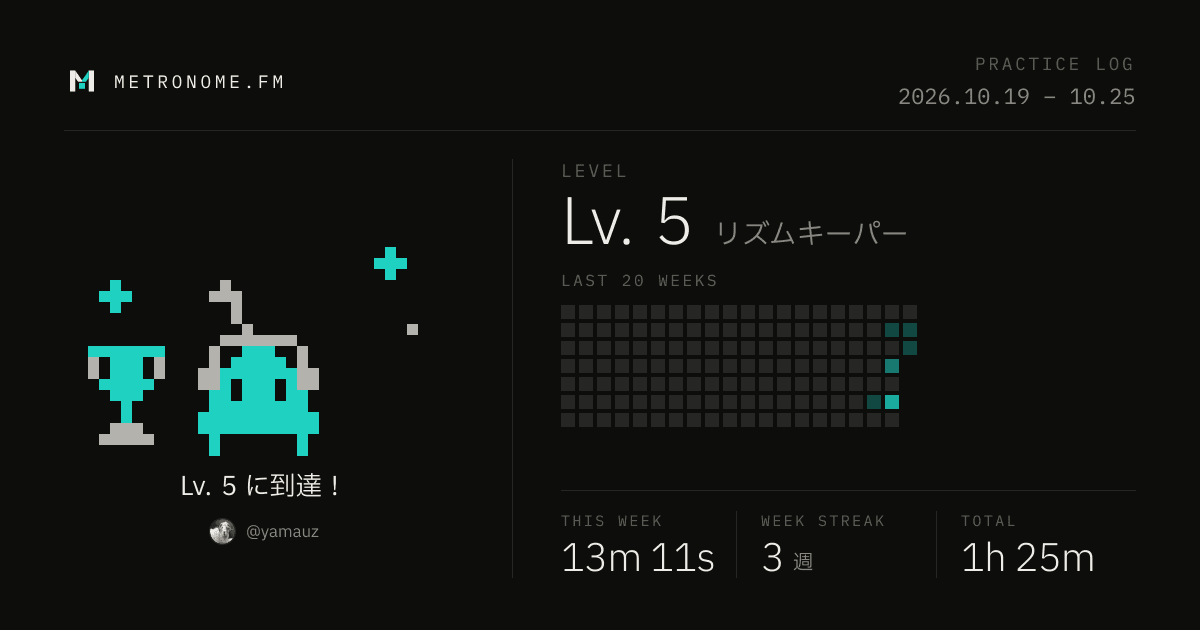
The card in the previous post had to be pasted into your post by hand. Now you just post the page's URL and the card appears. So we removed Share at the bottom of the statistics, along with the screen for making and sharing a card. You now share from your timeline pages.
What the practice timeline is
Your timeline gains a page each time you level up. The first page (Lv. 1) is the day you started practicing. The app creates pages automatically, so there's nothing to create yourself. For levels you reached before the timeline existed, the pages are created from your practice history the first time you open it.
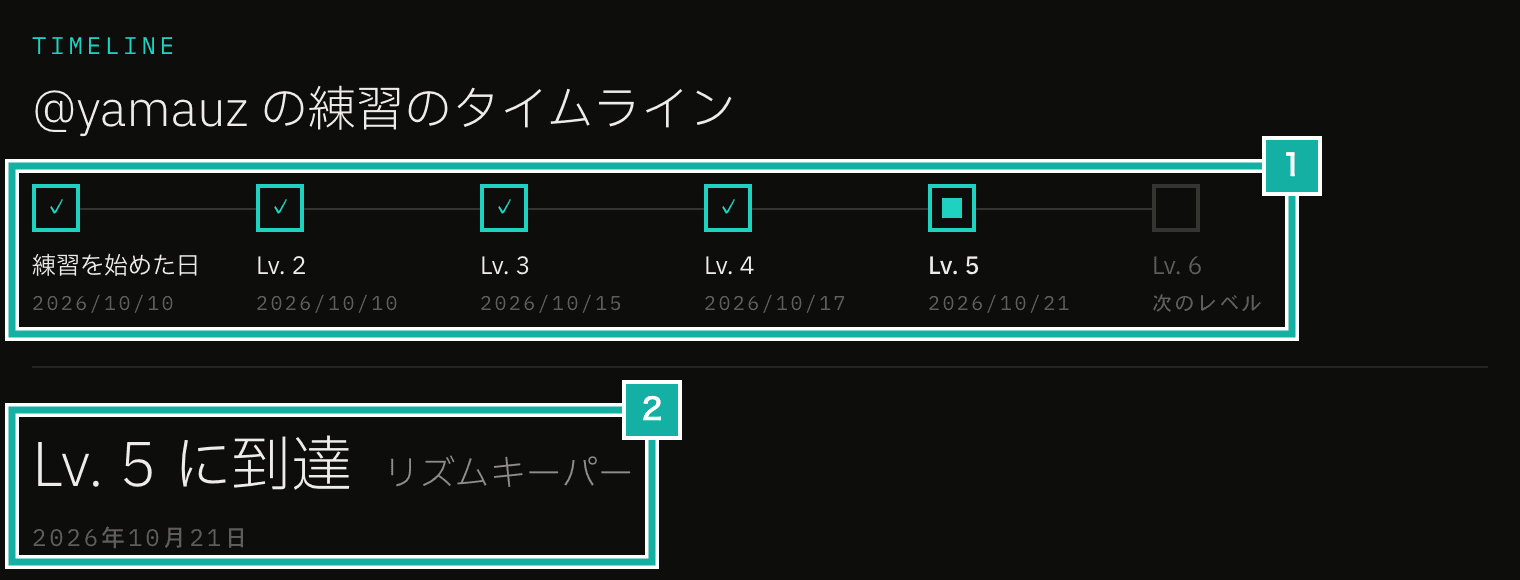
- The row of levels. Press one to move to that level's page. The rightmost is the next level, not yet reached
- The heading of the open page and the date you reached that level
Each page's card shows your record as of the day you reached that level: your level and title, that week's practice time, the number of weeks in a row you practiced, your total practice time, and a calendar of the 20 weeks up to that day. The numbers on a page don't change even as you keep practicing. Move between pages and compare the dates to see how often you've been leveling up.
Opening your timeline
To use the timeline, you need to set a username (the name that starts with @) in account settings, because your timeline's URL includes it. If you haven't set one, account settings appear when you try to open your timeline.
Open your timeline with View timeline in the level section of the statistics. The statistics open from the app menu.
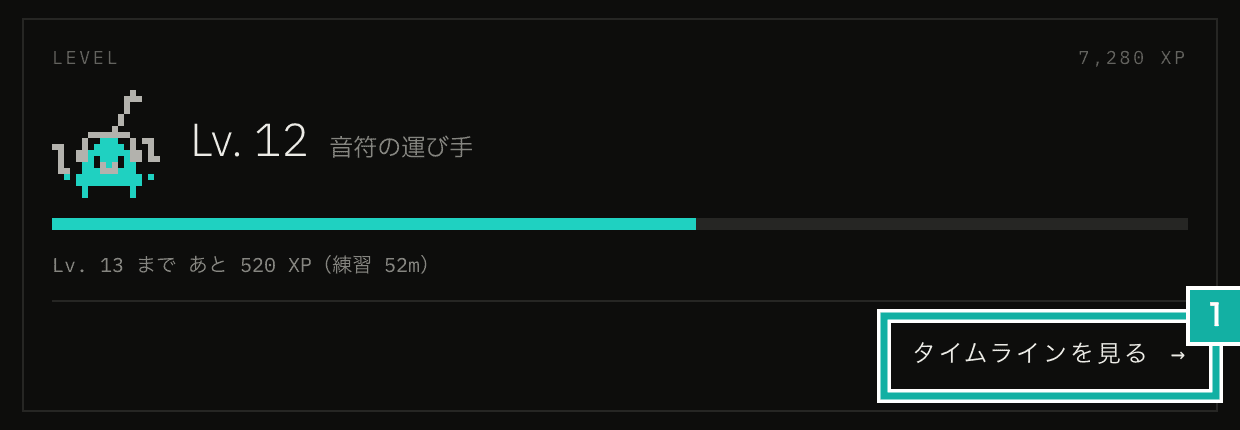
- View timeline. Opens the page for your latest level
The celebration you see when you level up has a Share your result button. Pressing it opens the page for the level you just reached.
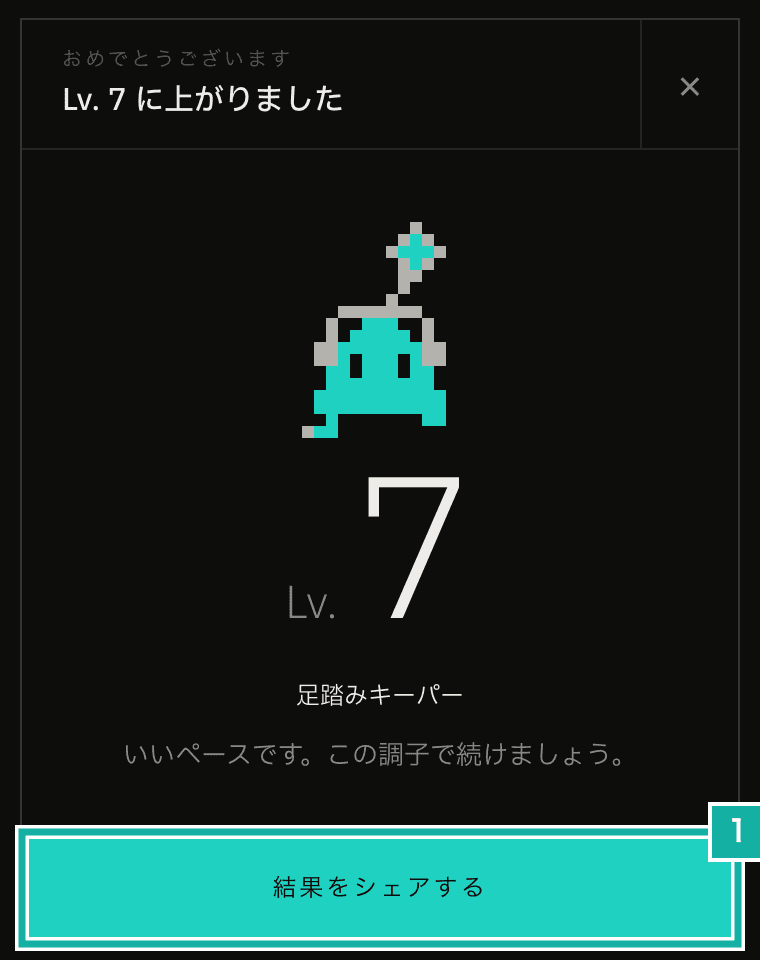
- Share your result. Opens the page for the level you just reached
Make it public and post it
At first, only you can see your timeline. Nobody else can.
At the bottom of your own pages, you'll find the comment field, the public switch, and the social media buttons. Only you can see them.
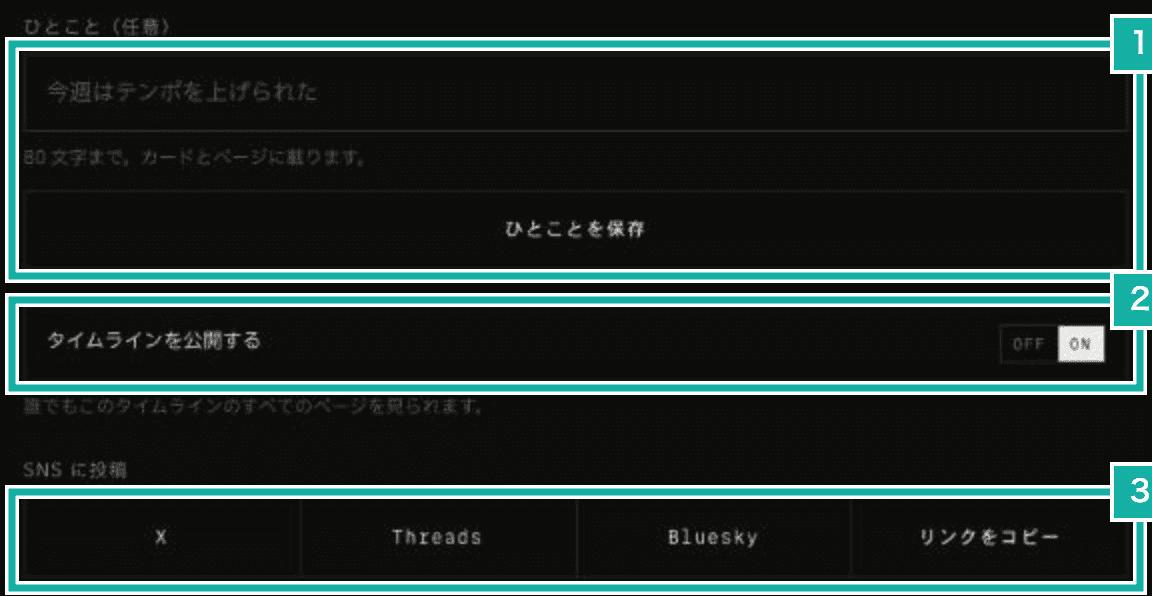
- Comment. Appears on the card and the page
- Make timeline public. When on, anyone can see all of its pages
- Post to social media. Opens a post with this page's URL filled in. Copy link copies just the URL
To share, first turn on Make timeline public. Once it's public, anyone can see all the pages of your timeline. You can't choose public or private page by page. The card and the page show your username and avatar, and the comment you added to that page.
After making it public, press the X, Threads, or Bluesky button to open a post with that page's URL filled in. The card at the top of this post appears in the post without attaching an image. If you press a button before making the timeline public, you're asked to make it public first. Copy link copies just the page's URL.
You can add a comment of up to 80 characters to each page. Comments appear on a page anyone can see, so they can't include hurtful language, advertising, or URLs. We check them with AI when you save, and if a comment can't be shown, it isn't saved and you're asked to rewrite it.
Notes from building it
This section is about decisions we made while building it.
Why the card now shows your name and avatar
The previous card showed neither your name nor your avatar. Anyone who saw the post could tell whose practice it was from the social media account.
This time, the card belongs to a page on your own timeline that anyone with the URL can see, and the page heading already shows your username. So the card now shows your username and avatar too. If you change your username or avatar, the card image is replaced with a new one (the numbers stay as of the day you reached the level).
Why the post text doesn't include the site name
The text we put in the post is just your level, like “My practice level reached Lv. 5.” At first, the text for the Lv. 1 page also had the site name, like “I started practicing with Metronome.fm.”
But X treats “Metronome.fm” in the text as a domain and turns it into a link. That gave the post a second link besides the page's URL, and it showed the card for our top page instead of the card for your page. So we took the site name out of the text. The site name is on the card anyway.
You can edit the text in the post screen. If you add “Metronome.fm” yourself, the top page's card may show up the same way, so keep that in mind.