You can now turn your practice records into an image card and share it. You can make a card from the statistics and from the celebration screen that marks your achievements. Along with that, when you level up into a new title (a name that comes with your level, like Beginner or Tempo Master), Friko, our mascot, evolves into a new look in the celebration.
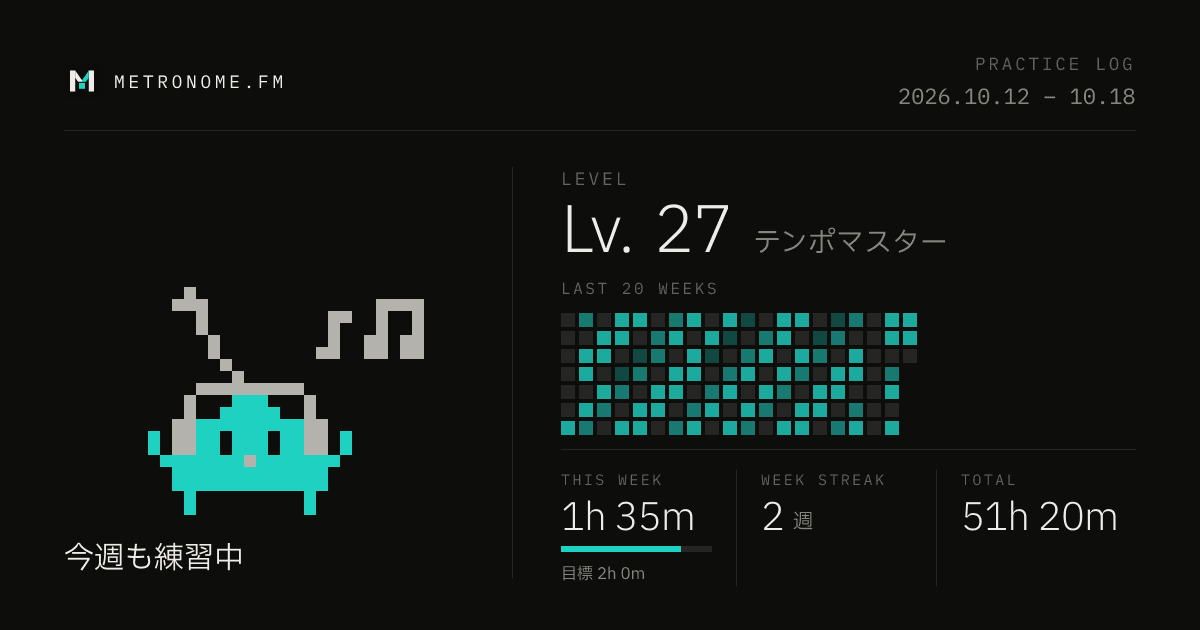
Making a card
Open the statistics from Statistical Charts in the menu, and press Share at the bottom to open a preview of the card. The card is made from the practice records of the signed-in person.

- Share. Opens a preview of the card
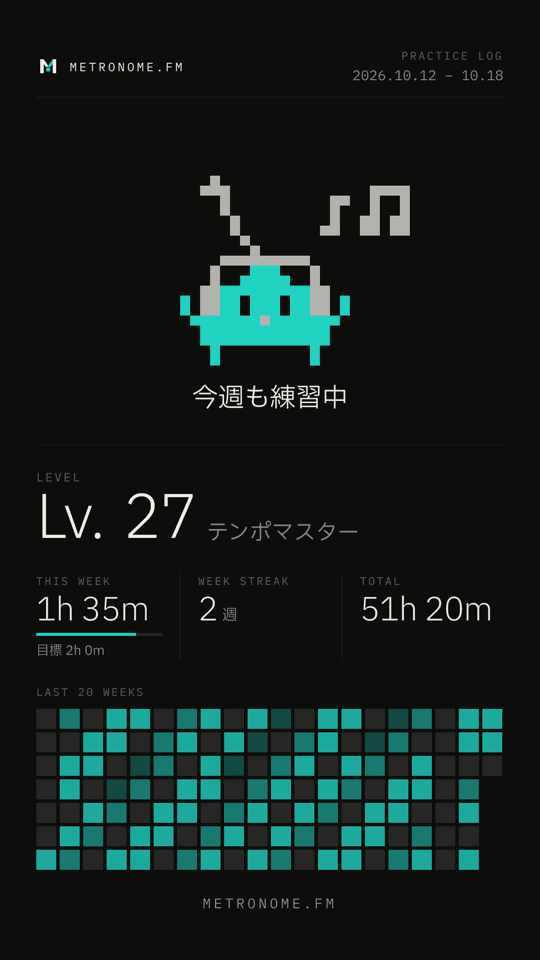
You can pick a portrait card that fits stories on Instagram and similar apps, or a landscape one. Below the preview, you can post to social media or save the image.
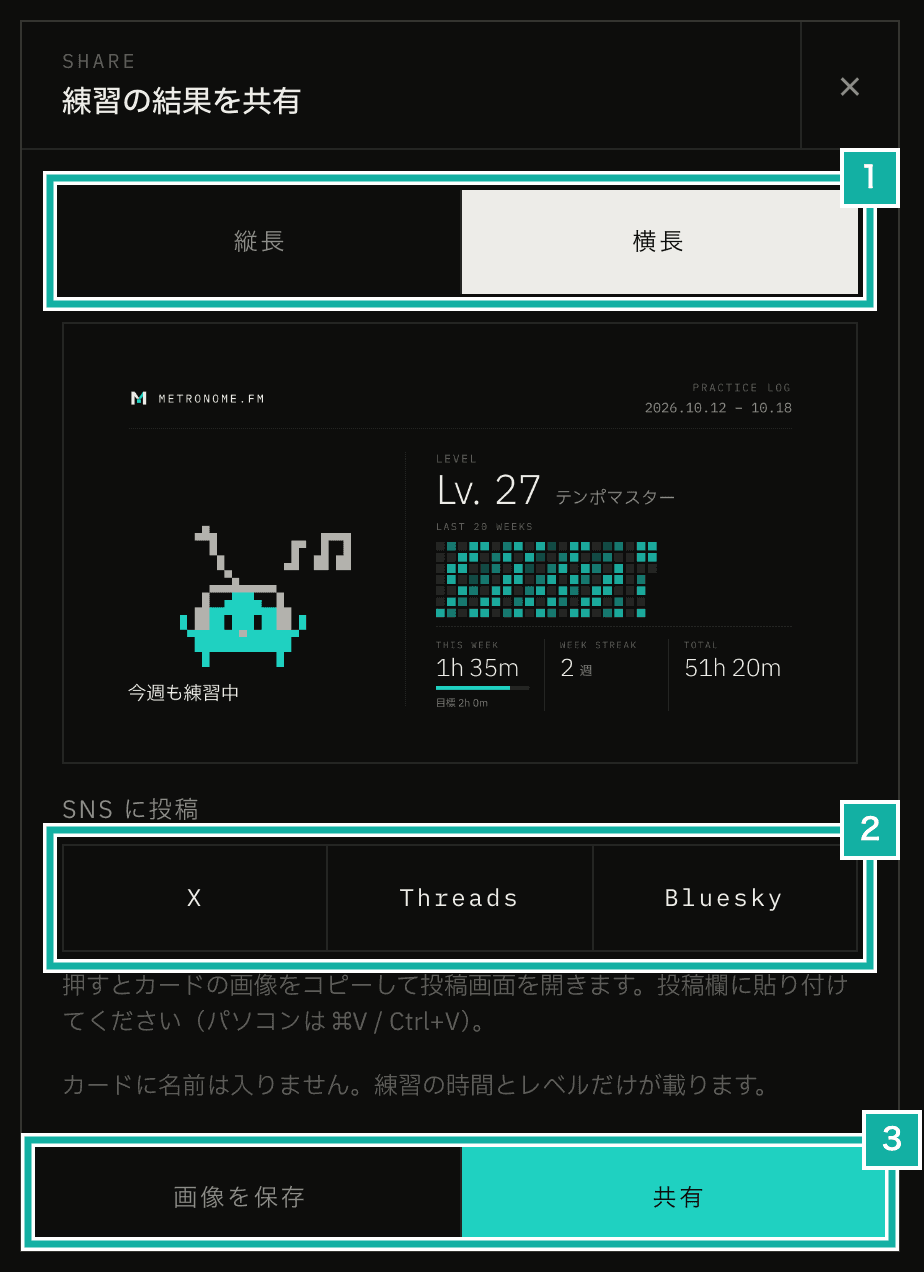
- Card shape. Switches between portrait and landscape
- Opens the post screen of each service. It also copies the card image, so you paste it into your post
- Saves the image, or opens your device's share sheet
What's on the card
The card shows your level and title, this week's practice time, how many weeks in a row you practiced (your week streak), your total practice time, and a practice calendar of the last 20 weeks with one square per day. If you set a weekly goal in the statistics, a progress bar shows this week's progress too.
Your name and profile picture are not on the card. Anyone who sees your post can tell whose practice it is from your account, so we didn't see a need to put personal information on the card.
The card takes on the accent color (the app's highlight color) you picked in Display settings.
Friko's look changes with your week
Friko on the card changes its expression, and the small drawings around it, to match how your practice went that week. For example, if you practiced this week, music notes float up, like on the cards above.
What other expressions there are is a secret. Keep practicing and make a card to find out.
Posting to social media
There are two ways to post a card from the card screen.
The first is Share at the bottom of the card screen. On phones, it opens your device's share sheet. Pick an app like X or Instagram there, and its post screen opens with the card image already attached.
The second is the X, Threads and Bluesky buttons. On both phones and computers, they open the post screen of each service. The post text includes this week's practice time, your weeks in a row, your level, and the Metronome.fm URL.
However, these buttons open the post screen from a URL, so they can't attach an image. These services only let a URL carry text and a link. So when you press a button, the card image is copied to your clipboard, and you paste it into the post yourself. On a computer, press ⌘V (Ctrl+V) in the post field to attach it.
// Open as a real link from the tap itself, and copy the image at the same time (without waiting for the copy)
<Link
  href={`https://x.com/intent/tweet?text=${encodeURIComponent(text)}&url=${encodeURIComponent(url)}`}
  target="_blank"
  rel="noopener noreferrer"
  onPress={() =>
    navigator.clipboard.write([new ClipboardItem({ "image/png": file })])
  }
>
  X
</Link>We tripped over two things on iPhone before landing on this.
- At first, after a button was pressed, we waited for the image copy to finish and then opened a new tab from code. That opened the post screen in the browser even when the X app was installed. iPhone only hands a link to an app when a person taps the link directly. So we made the buttons themselves links that open right away when tapped
- X has two URLs for opening the post screen:
intent/postand the long-standingintent/tweet. Opening it withintent/postdid open the X app, but it loaded the web version in the app's built-in browser and asked us to log in. So we useintent/tweet
LINE isn't supported. We had a LINE button at first, but LINE's post screen wouldn't take a pasted image, so it could only make posts without the card, and we removed it.
How the card is drawn
The card is drawn on the server, not in the browser. We use next/og (Satori), the same tool as the preview images (OG images) shown when you paste a link on social media, and make a PNG from the practice records of the signed-in person. For the fonts, we load only the characters drawn on the card from Google Fonts.
What counts as "this week" depends on your time zone, so the browser sends today's date. The server only accepts values within one day of today's UTC date. Time zones range from UTC-12 to UTC+14, so wherever you are, the correct date falls within that one day either way.
Friko evolves in the celebration
When you stop playing and have reached something new (a level, a milestone or your weekly goal), a celebration screen with confetti appears. Milestones are steps in your total practice time and in how many weeks in a row you practiced. Friko now shows up on this screen too.
When you level up into a new title, Friko evolves from its previous look. During the evolution, the heading changes to "Oh? Friko is changing…", and Friko is the only thing on the screen.
Silhouettes of the previous and next looks swap faster and faster, and then the next look appears in color. Only then do the level number and buttons like Share appear, and the confetti bursts.
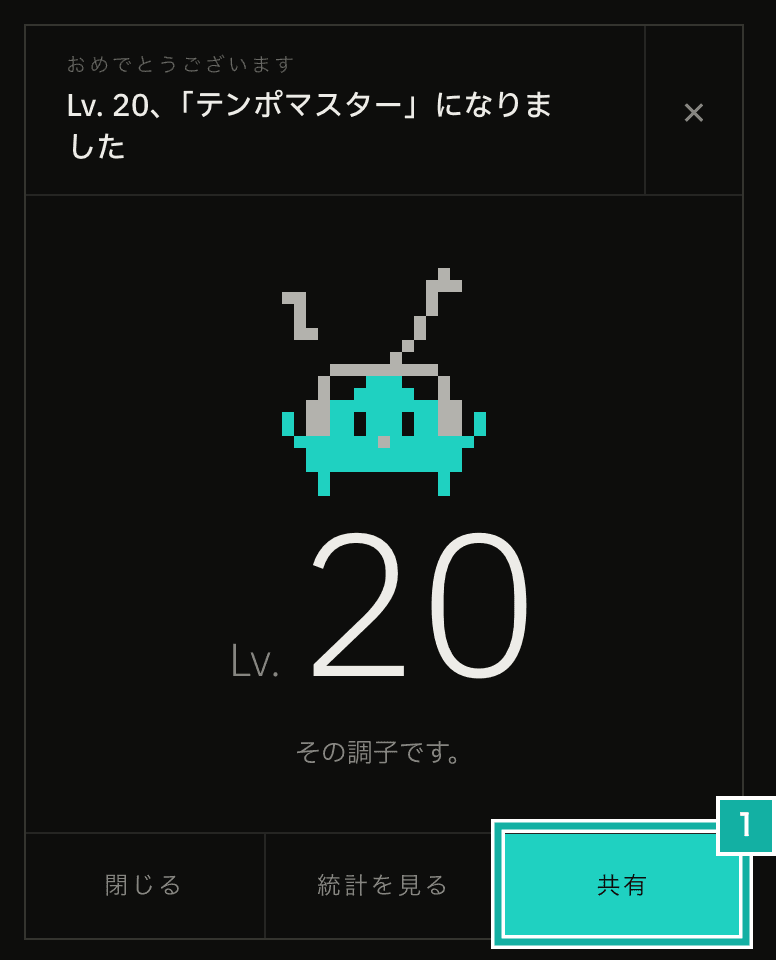
- Share. Opens the card screen
Press this Share to open the same card screen as from the statistics. You can make a card right when you level up.
A quick note on how the animation is built. So that the screen keeps the same height before and after the evolution, the number and buttons that appear later stay in place but hidden instead of being removed. The heading works the same way: "Oh? Friko is changing…" and the heading shown after the evolution sit in the same spot, and only one of them is shown.
Which titles bring which looks for Friko is a secret too.
We may let you post just a URL to show the card
Right now, you have to paste the image into the post screen yourself. To remove that step, we are thinking about changing how cards work.
The idea is to make a public page with your practice records at that moment, and use that page's preview image (OGP) as the card.
- Posting just the URL of that page shows the card as a large image on X and similar services. No need to attach the image
- The post itself becomes a link to the page, so people who see it can look at the card in detail or try Metronome.fm
- We'd also like to let you add a short comment of your own to the card
If that happens, the social media buttons on the share screen may switch to posting that page's URL. We'll move forward once we decide what is made public and how comments are handled.