v2.69
Set your own image as the metronome's background
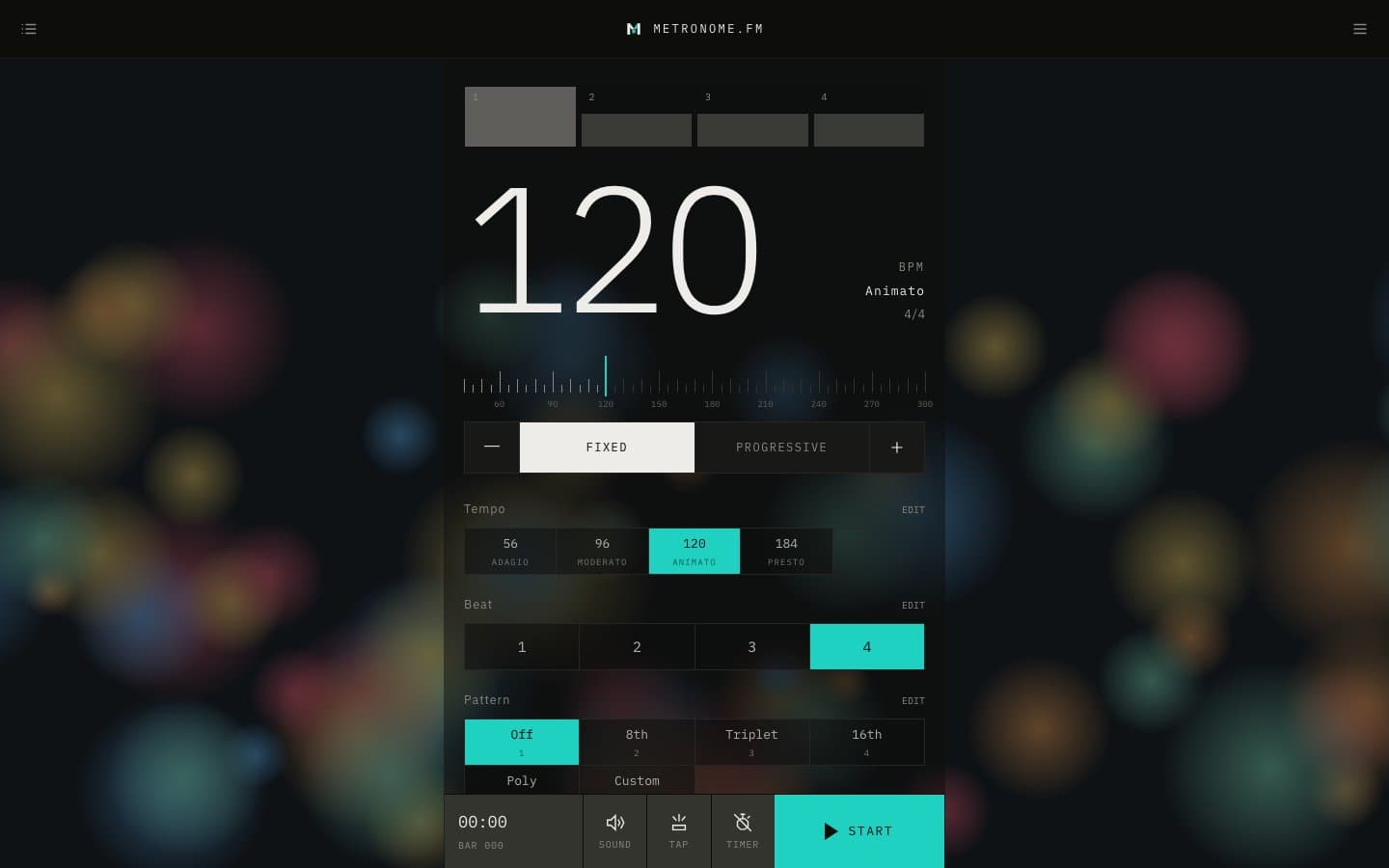
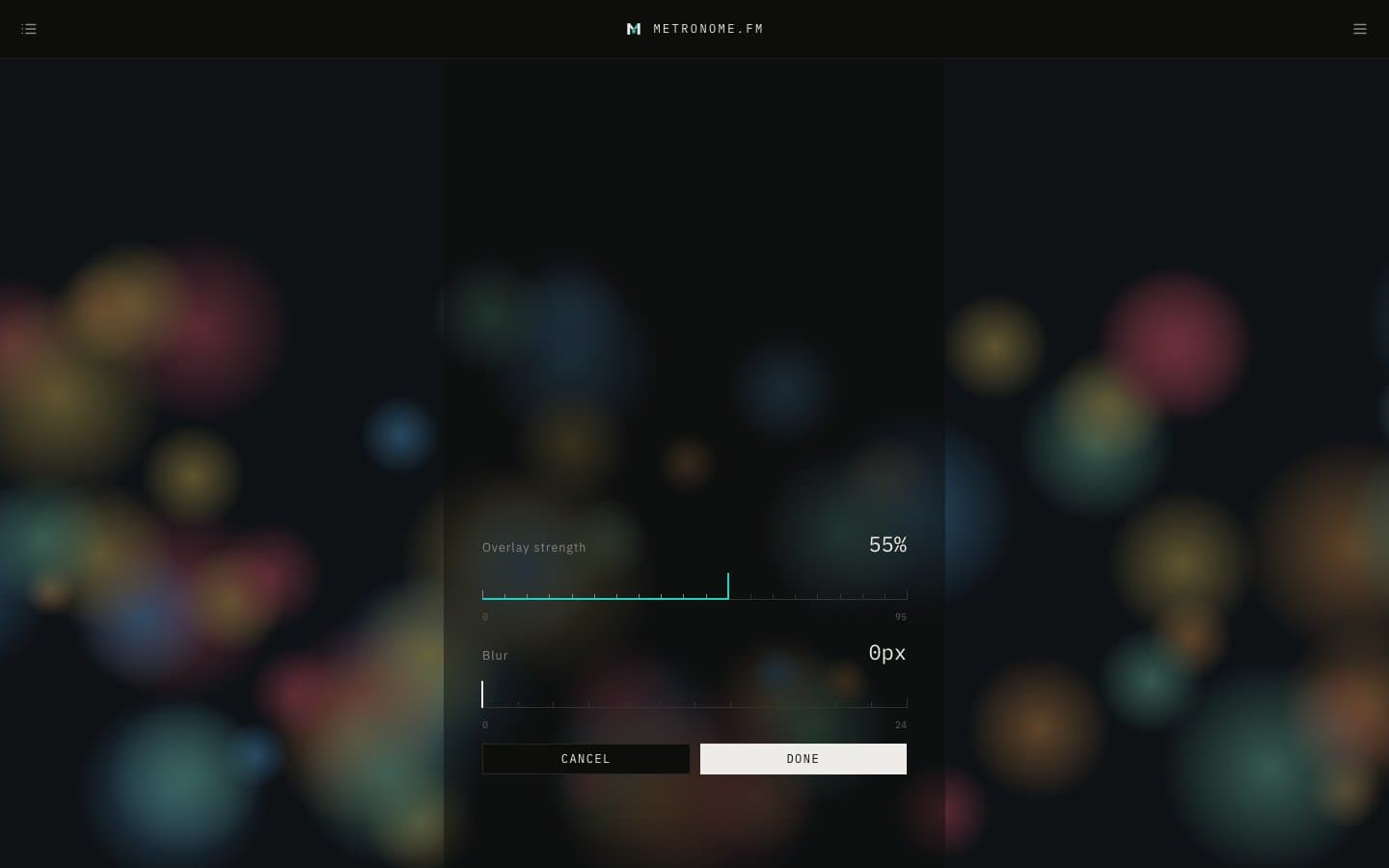
Choose an image under Background image in Display settings, or drop a file onto it, to place it behind the metronome screen. You can adjust the overlay strength and blur while looking at the background. When you're signed in, you get the same background on your other devices.
October 24, 2026
The app in this version
Changes
- Added Background image to Display settings in the menu. Press CHOOSE IMAGE or drop an image file onto the frame to place it behind the metronome screen.
- After you choose an image, you go straight to adjusting it. The metronome is hidden and sliders appear at the bottom of the screen, so you can change how strongly the base color covers the image and how much it's blurred while looking at the background. Press DONE to keep your changes or CANCEL to undo them. To change them later, press ADJUST OVERLAY & BLUR.
- While a background image is set, the tempo and time signature buttons become translucent so they blend with the image, and the beat meter loses its borders.
- When you're signed in, the image is saved to your account and shows on your other devices too. When you're not, it's saved only in this browser.