v2.31
Progressive mode can now slow down, change smoothly and move in waves
Progressive mode can now lower the BPM as well as raise it (ritardando). You can also have it change smoothly on every beat instead of in steps (accelerando and ritardando), and practice in waves that go a little further and then step back.
October 12, 2026
The app in this version
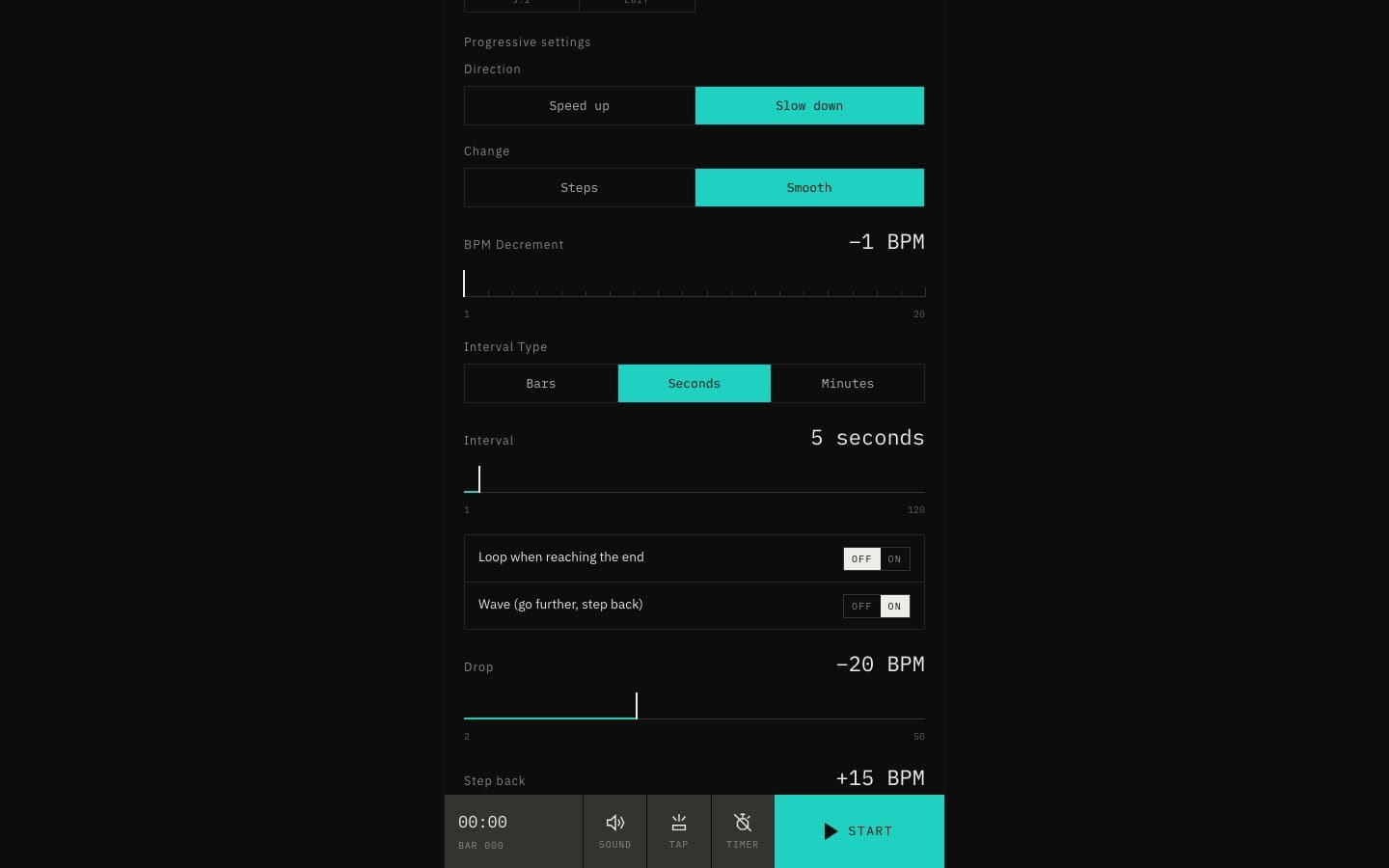
Changes
- Choose Slow down under Direction in Progressive settings to start at the higher end of the range and move to the lower end. The display shows the start first, such as 180 → 120.
- Choose Smooth under Change to spread each change over every beat, so the tempo moves like a slope instead of stairs.
- Turn on Wave (go further, step back) to move by the Rise amount, then step back by the Step back amount at once, until the end (for example 100 → 120 → 105 → 125 …).
- The loop setting is now called Loop when reaching the end. When slowing down, it goes back to the start (the higher end) after reaching the lower end.
- The new settings are kept in saved settings, in multi-track tracks, and in JSON export and import. In JSON, an endBpm lower than bpm means slowing down. Files exported before still load as they are.
- You can also ask the AI settings editor for things like "slow it down gradually", "speed up smoothly" or "up 20, back 15".
- In the keyboard shortcut settings, you can assign keys to toggling the progressive direction, change and wave, and to choosing a direction or change (there are no default keys).
- MP3 export still leaves out tempo changes and uses the start BPM.