v2.113
Audio settings become Output settings (OUT in the bar), and recording, count-in and the mixer open separately
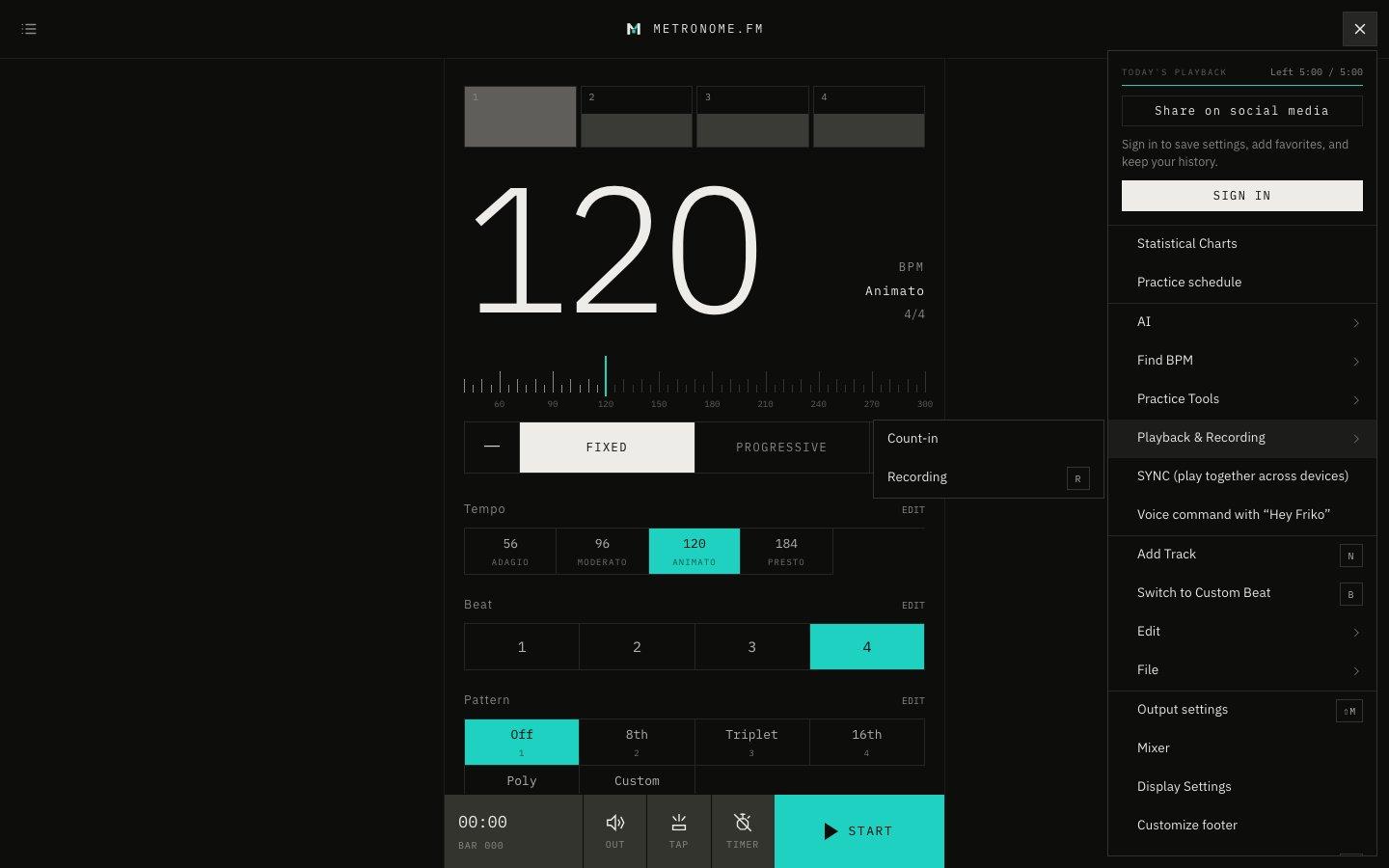
We added Playback & Recording and Mixer to the menu. You can start recording even if REC isn't in the bottom bar, and the count-in and the mixer (mute, volume and left / right output) moved out of the audio settings so you can open each on its own.
November 16, 2026
The app in this version
Changes
- Switching a setting between public and private in the share panel now saves even if you move to another setting right away.
- Starring now saves correctly even when you tap repeatedly or switch to another setting right after tapping. We also fixed the first tap after switching settings sometimes doing nothing, and taps in the app being ignored while a previous change was still saving.
- The TIMER icon in the bottom bar now shows the plain timer even when the timer is off, without the slash. When it's on, the icon is highlighted in the accent color.
- Starring a setting (in the current-setting bar or the library) now plays a small burst: a ring spreads out from the star and tiny dots scatter around it. It's skipped when reduced motion is on.
- Reorganized the app menu into submenus grouped the same way as Customize footer (Sound, Playback & Recording, Find BPM, Practice Tools, AI, Records & Plans, Display, Edit and File). Customize footer moved under Display.
- You can now add FOOTER to the bar at the bottom of the screen. Press it to open Customize footer.
- Renamed Export Audio / Video in the menu to Export and added a JSON tab to it. Save the settings file (JSON) from this tab (Export as JSON is no longer in the menu).
- You can now add IMPORT and EXPORT to the bar at the bottom of the screen (Customize footer in the menu). They do the same as Import Settings File and Export under File in the menu, and EXPORT opens the Export screen above the bar.
- You can now add SAVE and TRACK to the bar at the bottom of the screen (Customize footer in the menu). SAVE opens Save Current Setting above the bar, and TRACK adds the current setting as a track each time you press it.
- You can now add FRIKO to the bar at the bottom of the screen (Customize footer in the menu). Press it to turn starting voice commands with “Hey Friko” on or off, the same as in the menu. Its icon lights up while it is on.
- You can now add FILE BPM and LIVE BPM to the bar at the bottom of the screen (Customize footer in the menu). Press them to open Detect BPM from Audio or Detect BPM Live above the bar, the same as in the menu.
- In the Customize footer preview, you can now drag buttons with a mouse to reorder them (it used to need a press and hold).
- You can now add AI BPM and AI EDIT to the bar at the bottom of the screen (Customize footer in the menu). Press them to open Ask AI for BPM or Ask AI to Edit Settings above the bar, the same as in the menu.
- Made the list in Customize footer more compact, with one-line descriptions. Buttons you haven't added are now grouped, such as Sound, Playback & recording, Find BPM, Practice tools, AI, Records & plans, Display, Edit and File.
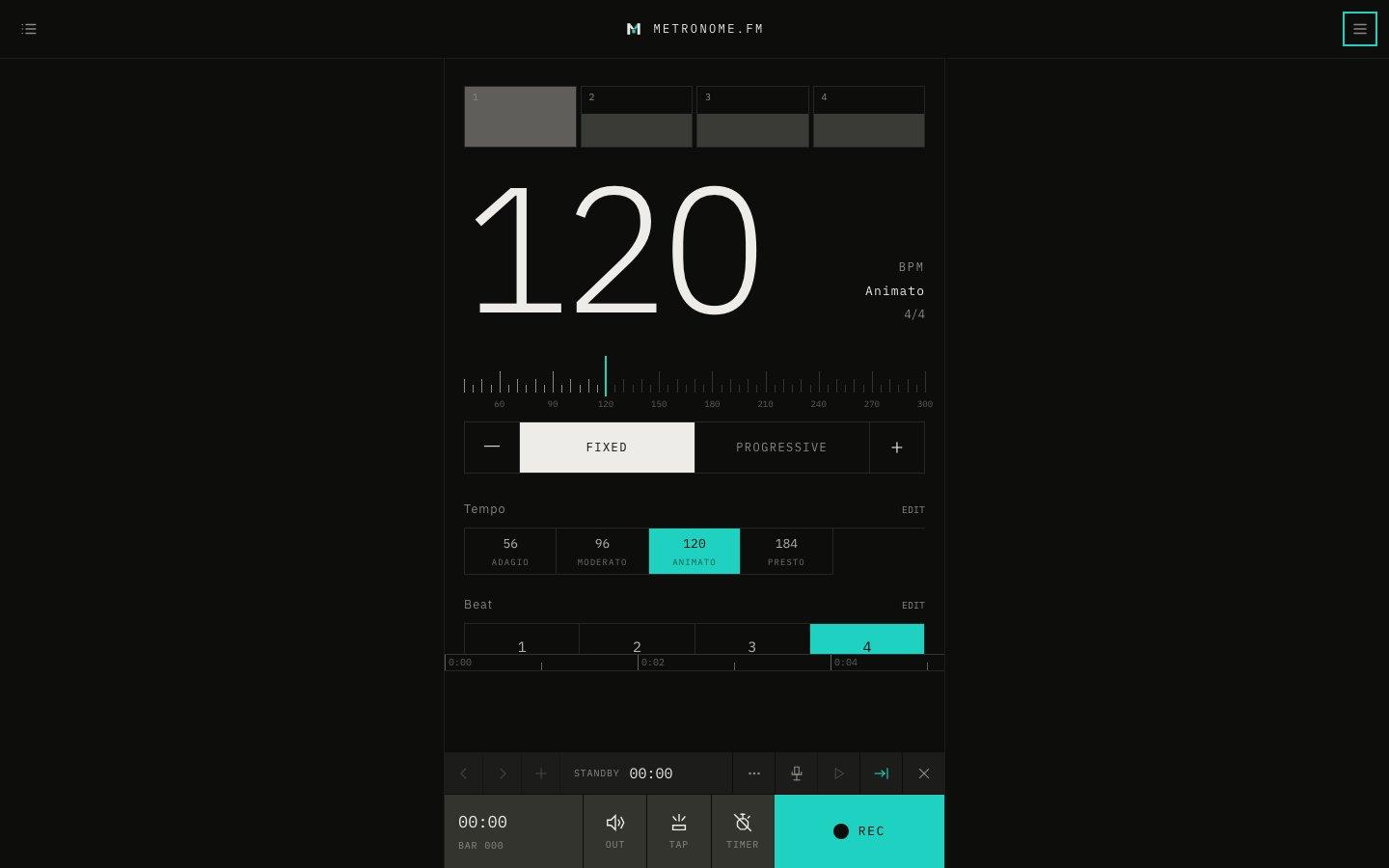
- Playback & Recording › Recording in the menu arms recording and shows the recording panel.
- The button at the right end of the recording panel is now × instead of collapse. Press × to disarm recording and close the panel.
- Hiding REC from the bar no longer disarms recording, and the R key no longer adds REC to the bar when it arms recording.
- While recording is armed, the START button's play symbol now becomes a circle and its label changes to REC. The REC cell is no longer filled in; like FLASH and the other cells, its outline lights up while it's on.
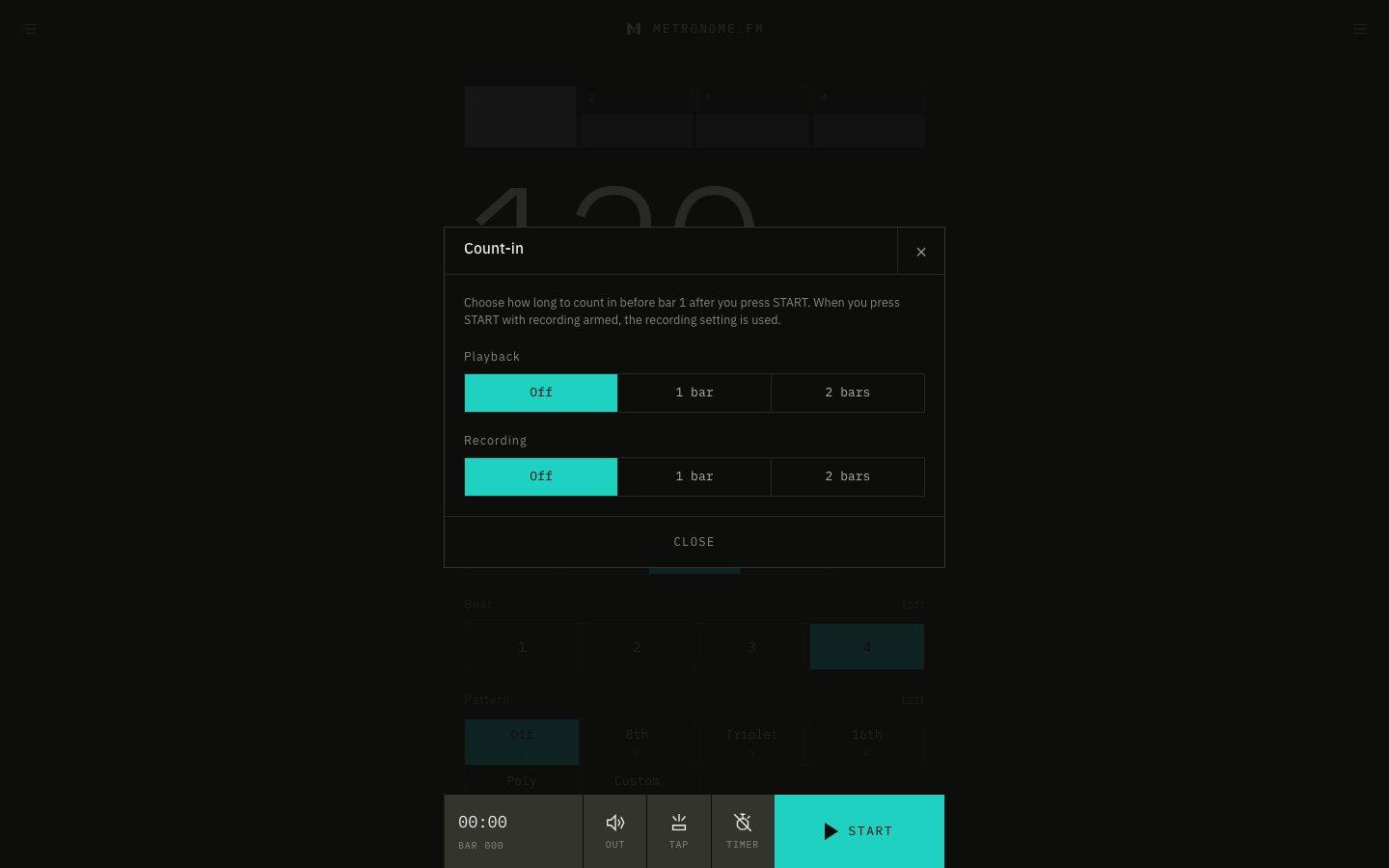
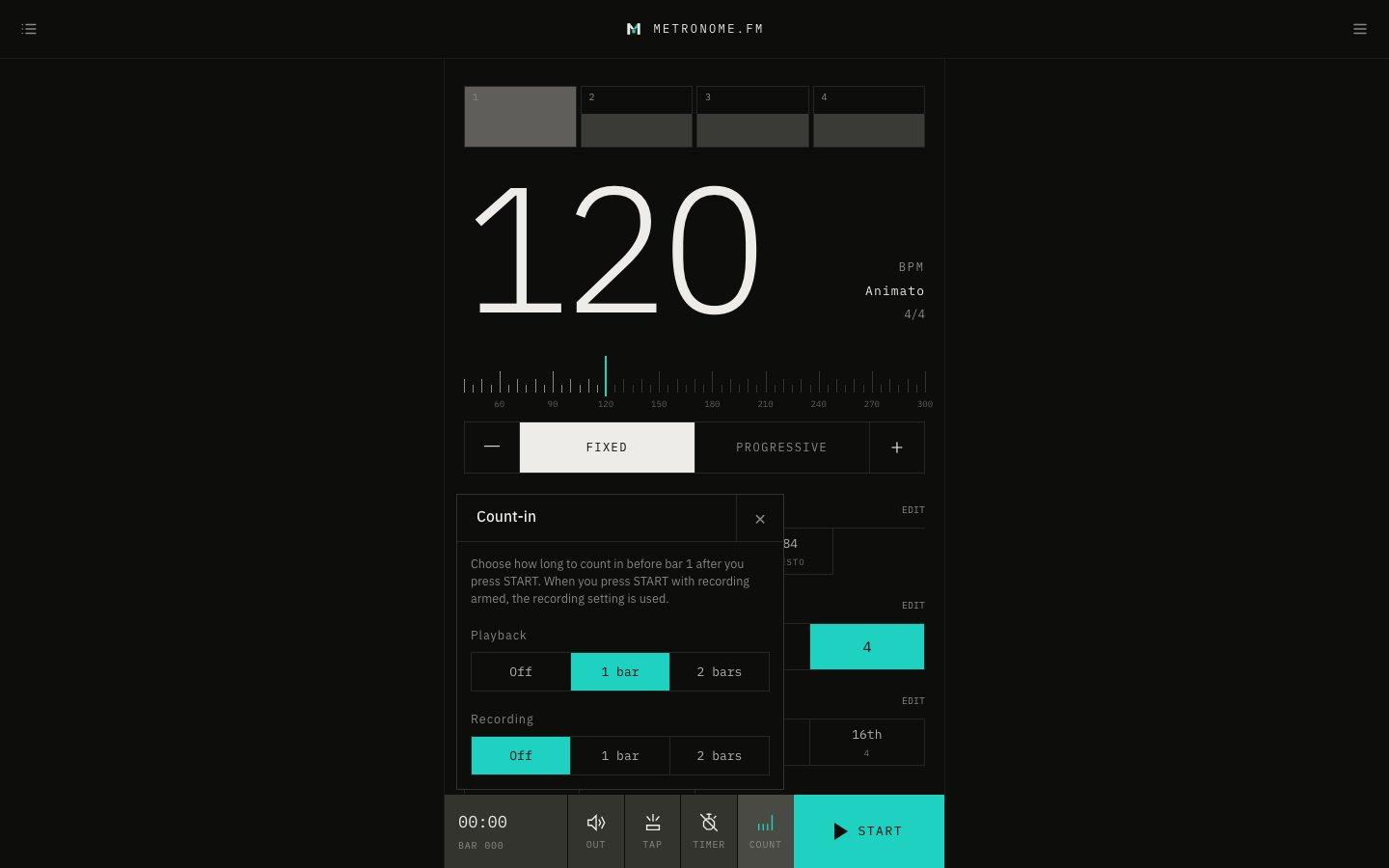
- Count-in settings moved from the audio settings (SOUND) to Playback & Recording › Count-in in the menu. You can choose the playback and recording count-ins on one screen.
- You can also open the count-in settings from COUNT in the bar at the bottom of the screen (add it with Customize footer in the menu).
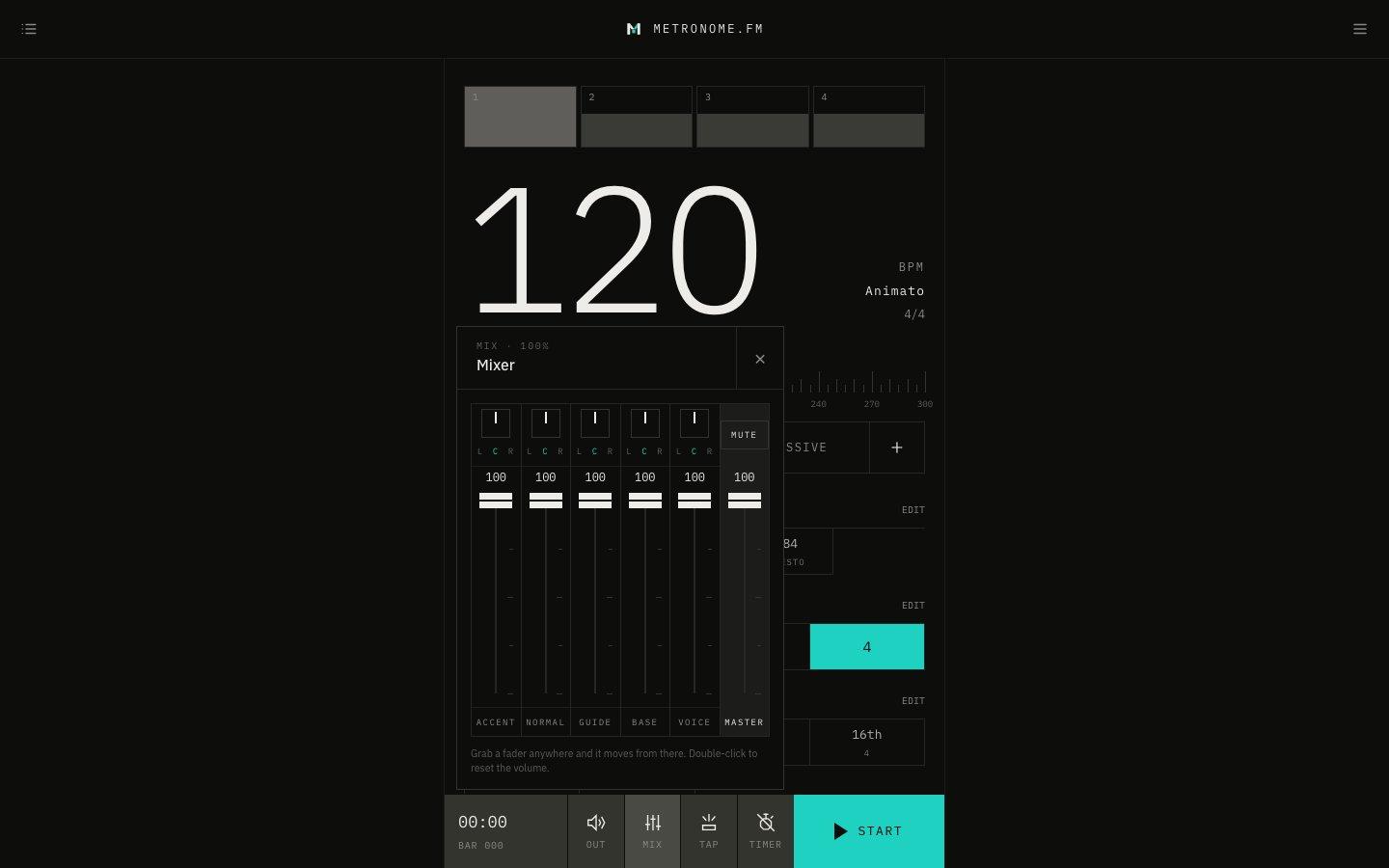
- Mute, volume and left / right output moved from the audio settings (SOUND) to the new Mixer. Open it with Mixer in the menu, or MIX in the bar at the bottom of the screen (add it with Customize footer in the menu).
- The mixer is now a row of vertical faders like a mixing desk. Grab a fader anywhere and it moves from there, and double-click (double-tap) to reset the volume. Choose left / right output with the knob above each fader, and silence everything with MUTE on the master strip.
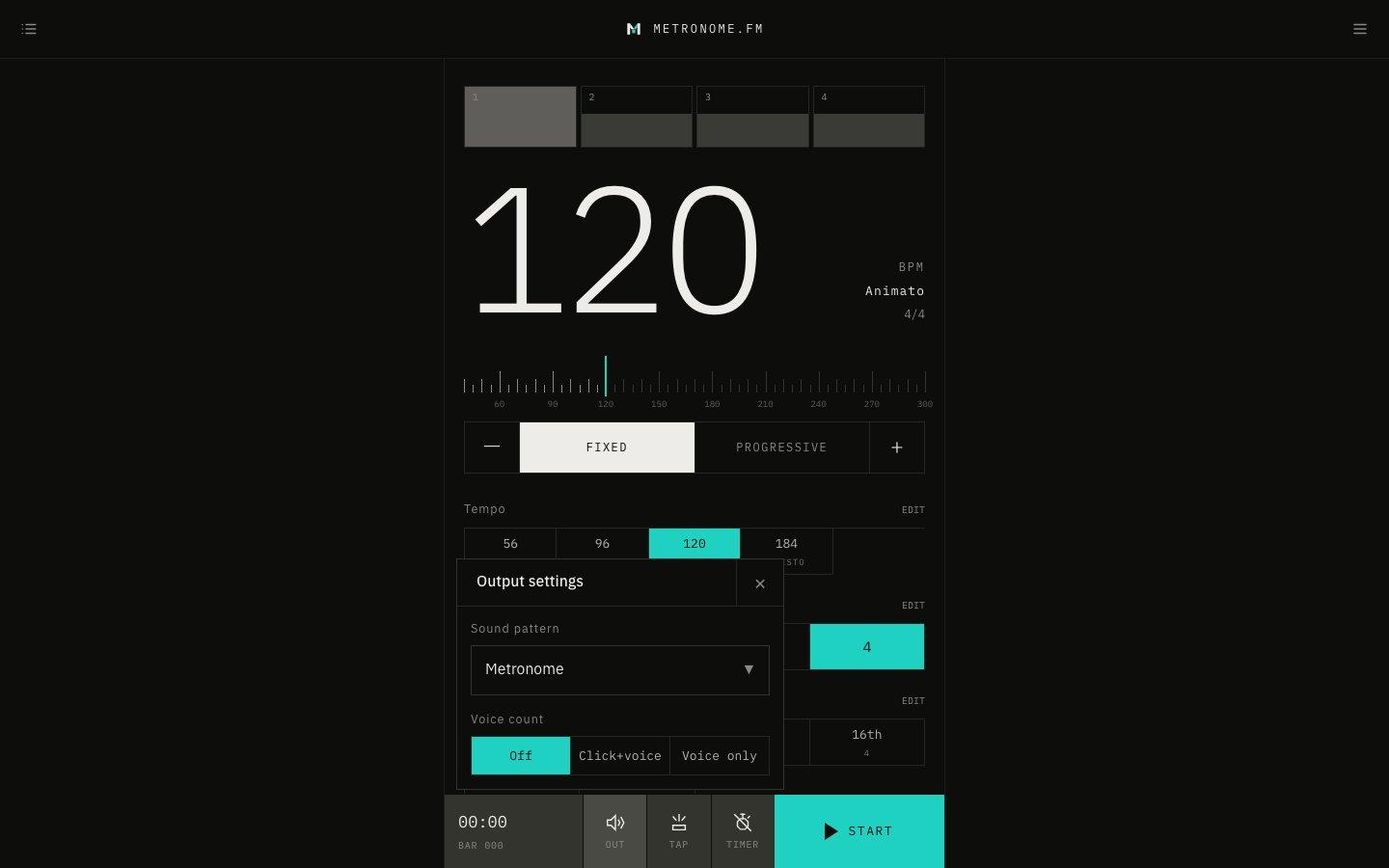
- SOUND in the bar at the bottom of the screen is now OUT, and Audio settings in the menu is now Output settings. It gathers how the beat comes out: the sound, voice count, vibration and more. The speaker symbol stays the same.
- You can now add STATS to the bar at the bottom of the screen (Customize footer in the menu). Press it to open your practice records above the bar, the same as Statistics in the menu.
- The next version of the iOS app is reorganized the same way. Stop when face down and Shake to start or stop also move from the audio settings to Sensors in the menu.