In the previous post, I wrote about letting you assign any key to each keyboard shortcut action. You can change keys one at a time on screen, or write them all at once in JSON. It ended by saying I would add more actions and reassign the default keys. This post is the follow-up.
This time, the number of actions you can assign a key to went from 16 to 41, and I chose the default keys (the keys you get if you change nothing) again from scratch. Only 4 of the existing keys actually changed. Below is which keys changed, and the rules I followed when choosing them.
From 16 actions to 41
The new actions are ones that already had a button or a menu item but could not be used from the keyboard.
Group | New actions |
|---|---|
Playback & tempo | BPM +1 / −1, tap tempo, progressive (gradually changing the BPM) target BPM +1 / −1, restart the timer |
Tracks & beats | next / previous track, loop tracks (LOOP), delete the selected track, toggle custom beat |
Sound & recording | volume up / down, arm recording (get ready so that pressing START begins recording) |
AI & BPM detection | ask AI to edit settings, detect BPM from audio, detect BPM live |
View, settings & help | display settings, add to / remove from favorites, copy the setting URL, import settings JSON, export MP3, edit shortcuts, docs, contact us |
The table above groups the new actions roughly. With more actions, the shortcut list is now split into 8 groups instead of 4: Playback & tempo, Tracks & beats, Sound & recording, History, AI & BPM detection, View, Settings & files, and Help.
Choosing the default keys again
Of the 16 actions before, 14 had a default key, picked by first letter back when there were only a few actions. For example, Add track was M (for Multitrack), Reset was R, Timer was T, and Mute was V (for Volume).
Once the number of actions more than doubled, first letters stopped working. Tap and Timer both start with T, and Rec and Reset both start with R. So I chose the default keys again from scratch, including the new actions.
These are the 4 keys that changed from before. ⇧ is Shift, and ⌘ is the Mac ⌘ key (Ctrl on Windows).
Action | Before | After |
|---|---|---|
Mute | V | M |
Add track | M | N |
Timer on / off | T | ⇧T |
Reset to initial state | R | ⇧R |
The freed T is now Tap, and R arms recording. The keys that stayed the same are Space (start / stop), A (ask AI for BPM), P (progressive), D (theme), L (library), F (full screen), S (save), ? (shortcut list), ⌘Z, and ⇧⌘Z.
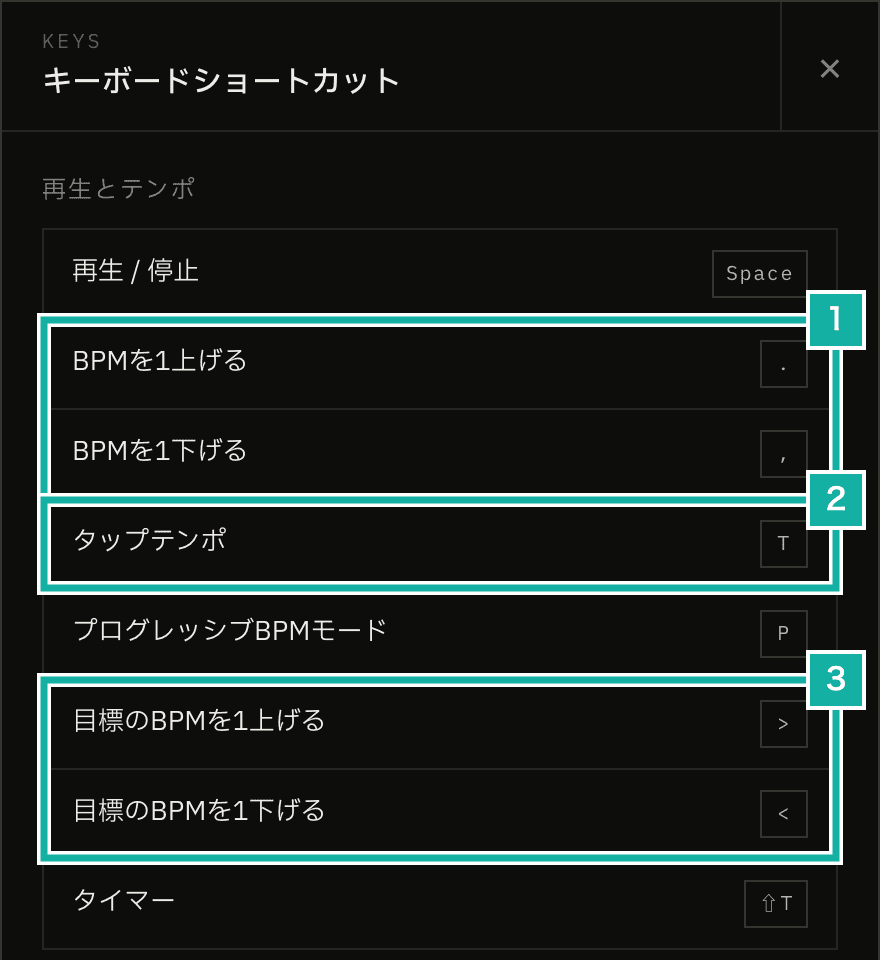
- . and , raise and lower the BPM
- T is tap tempo
- > and < raise and lower the target BPM
I followed four rules when choosing keys.
The more often you use it, the more likely it gets a single key
Actions you press many times during practice got a single key with no modifier. To let habits from other services carry over, I matched well-known assignments: M to mute like YouTube, and J and K for the next and previous track like Gmail. Volume goes up with 0 and down with 9, like the mpv video player.
Tap tempo is pressed repeatedly along with the music, so it got a plain T without Shift. The timer is usually pressed once before you start practicing, so it moved to ⇧T.
Related actions sit on neighboring keys
BPM +1 and −1 are . and ,. They are next to each other on the keyboard, and their shifted characters, > and <, point in the right direction. Those > and < raise and lower the progressive target BPM. So the progressive start BPM (. and ,) and target BPM (> and <) move with the same two keys, depending only on whether you hold Shift.
At first I also considered = and -, since those keys have + and − printed on them. On a Japanese (JIS) keyboard, though, = is typed with Shift on the same key as -. . and , are neighbors on both US and JIS layouts, so they are pressed the same way on either.
Single keys only for actions that are harmless to hit by accident
As I wrote in the previous post, this app also uses single keys with no modifier as shortcuts (they don't fire while you are typing in a text field). The flip side is that you sometimes hit one while reaching for another.
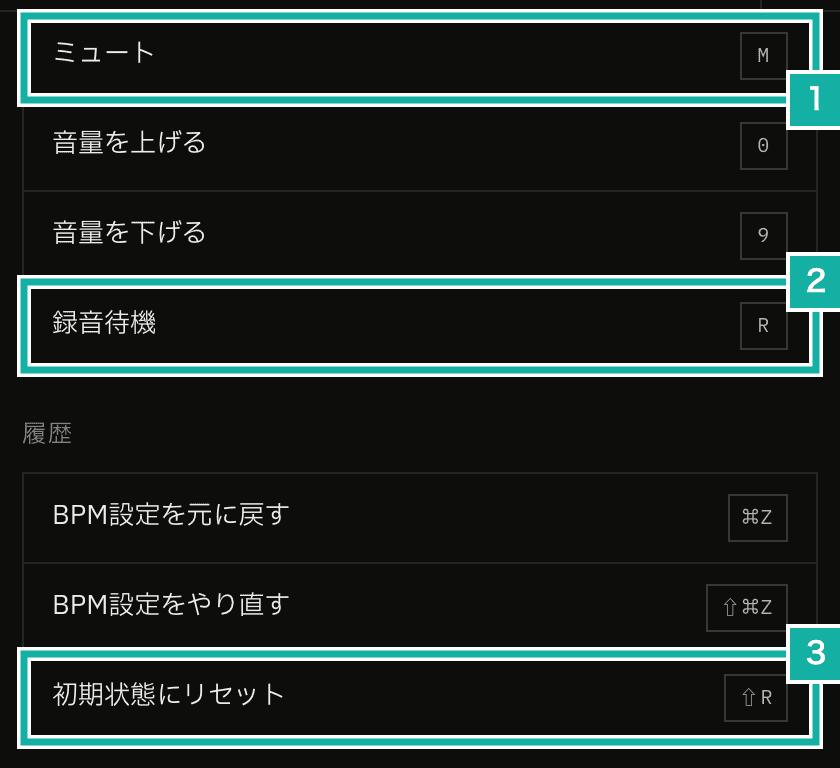
- Mute moved from V to M
- R arms recording
- Reset moved to ⇧R, with Shift
Reset to initial state puts the tempo, time signature, and tracks back to the start at once, so pressing it by mistake throws away your work. It used to be a plain R; it is now ⇧R. Deleting the selected track also has no default key. You can undo a deleted track with ⌘Z, but I still did not want a single stray key press to make a track disappear.
Avoid keys the browser and OS use
Keys with ⌘ are often taken by the browser or the OS, so ⌘Z and ⇧⌘Z are the only ⌘ keys among the defaults. Every default key for the new actions is a single key or a key pressed together with Shift.
Keys you changed yourself stay as they are
Changing default keys confuses people who memorized the old ones. I also listed which keys changed, and why, in the release notes.
If you had changed a key yourself, you keep it. The app only saves assignments that differ from the default; nothing is saved for actions left at their defaults. Actions you left at their defaults now use the new default keys.
// Save only the assignments that differ from the default
const simple = Object.fromEntries(
  SIMPLE_ACTIONS.filter(
    (action) =>
      !onlyChanged || keymap.simple[action.id] !== action.defaultKeystroke,
  ).map((action) => [action.id, keymap.simple[action.id]]),
);For example, if you had changed mute to X, it is still X after the reassignment. If you had not changed anything, mute is now M. Even if you had explicitly assigned V, the old default, to mute, it becomes M too, because V matched the default and was never saved.
Keys in the menu
In the app menu, each item shows the key for its action on the right. Now that more actions can have keys, more menu items show one.
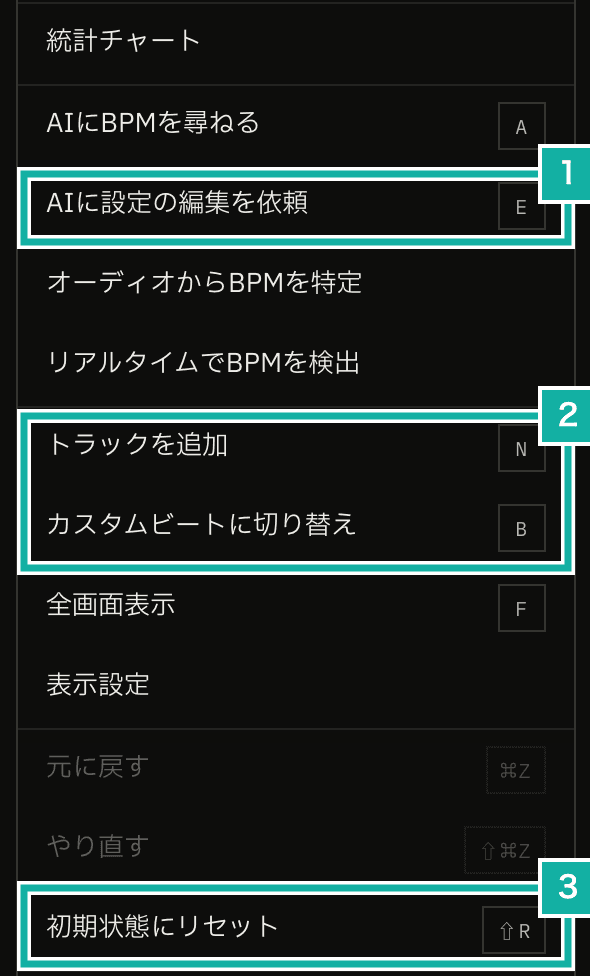
- Ask AI to edit settings is E
- Add track is N, and toggling the custom beat is B
- Reset is ⇧R
Actions without a default key, such as detecting BPM from audio, also show your key in the menu once you assign one.
Running actions that live inside a button's component from the keyboard
Most of the new actions only needed to call a function in the store (zustand), which holds the app's state in one place, like changing the BPM or toggling track looping.
The tricky ones were actions whose information or logic lives inside a UI component. Tap tempo remembers the time of the first tap inside the TAP button's component, so nothing outside that component could trigger it. For favorites and copying the URL, the code that talks to the server is also inside the component that shows the setting's name.
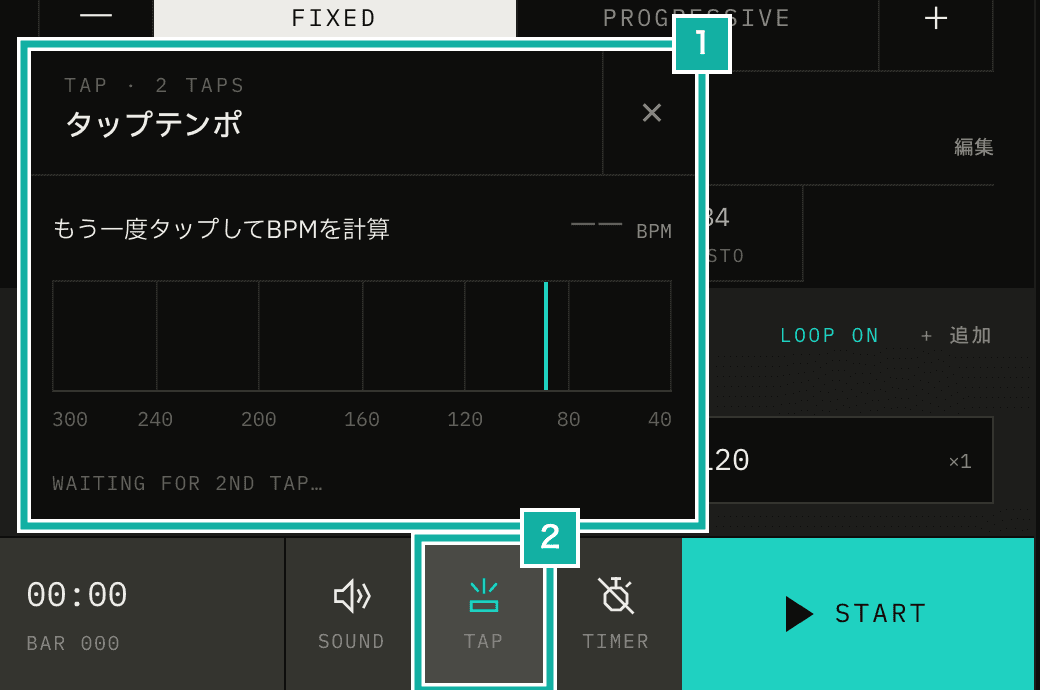
- The tap tempo panel. The second tap sets the BPM
- The TAP button at the bottom of the screen
So the component registers in advance what should happen when the key is pressed, and pressing the key runs what was registered. Start and stop already worked this way, and the new actions follow it.
// The TAP button's component registers what to do when the key is pressed
useEffect(
  () =>
    registerTapTempoController({
      tap: () => {
        setOpen("tap");
        tap();
      },
    }),
  [tap],
);Pressing the key opens the panel and counts the tap, just like pressing TAP. If the component that registers it isn't on screen, the key does nothing.
The R key for arming recording works even when the REC button isn't on screen. The REC button is hidden at first. Pressing R then shows the button and arms recording. That way you can see on screen whether recording is armed.
J and K for the next and previous track work like clicking a track in the track strip (where the tracks are lined up): if the metronome is playing, it stops first, then selects. At the first or last track, they go no further.
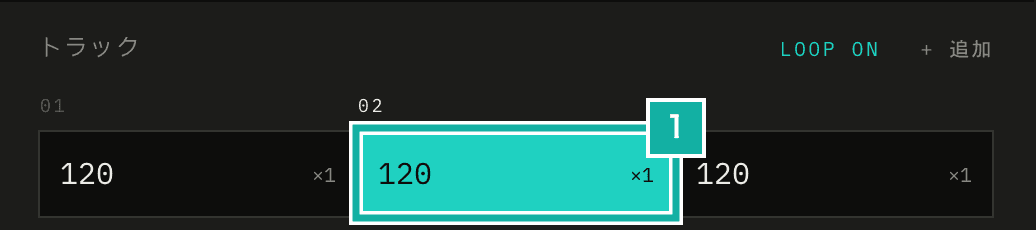
- K selects the previous track, and J the next one
Presets and tracks are picked by position
Some actions take a value, like "set the BPM to 120". These are counted separately from the 41 above, and they went from 3 to 13. These are the 10 new ones.
Action | How you enter the value |
|---|---|
Theme, accent color, beat display, sound, guide note, library tab | choose one |
Time signature (beats per bar) | a whole number from 1 to 16 |
Change the BPM by | a whole number from −100 to 100, other than 0 |
Tempo preset, track | its position, counting from the left |
Tempo presets and tracks were the hard part. You add and remove both yourself, so whatever a key points to can disappear later. If assignments remembered the ID of each preset or track, assignments pointing to deleted items would stay behind, and you would have to clean them up.
Instead, they are chosen by their order on screen. If you assign "preset 2", the BPM is set from whatever preset is second at that moment, even after you rearrange your presets. If there is nothing at that position, the key does nothing.
// The Nth preset button on screen. Do nothing if there isn't one
const preset = state.allPresets.filter((entry) => entry.enabled)[index - 1];
if (preset) state.setBpmRange([preset.bpm, preset.bpm]);If you assign Alt plus a number key to each track position, alt-1 (Alt and 1) goes to the first track and alt-2 to the second.
If you write ctrl+j in the keymap JSON
In the keymap JSON, where you write assignments all at once, keys are joined with -, as in mod-shift-z, the same way the Zed code editor writes them. Joining keys with +, as in ctrl+j, is also common, so I had to decide whether to accept it.
Keys joined with + cause an error, and the error message shows how to join them with -.
Join the keys "ctrl+j" for theme:switch with - instead of + (ctrl-j). Write mod for Ctrl on Windows and ⌘ on Mac
Reading + the same as - would be easy. The reason not to is what ctrl means in this keymap. As the previous post explained, ctrl means the Mac Control key, and Ctrl on Windows is covered by mod. A ctrl key doesn't fire on devices without a Control key. If someone on Windows wrote ctrl+j out of habit, it would load fine but never fire on Windows.
Another option was to read ctrl as mod only when keys are joined with +. But then the same ctrl would mean different things depending on how it is written, which is more confusing. Showing an error with the correct form and a note about mod lets you fix it in one go.
When you want the + key itself, as in mod++, the last + is read as the key, and the error message tells you to write mod-+.