You can now assign Metronome.fm's keyboard shortcuts however you like. You decide which key runs each action, and your keys are saved to your account so they work on your other devices too.
Until now, the shortcuts were fixed: Space to play, A to ask AI for a BPM, and so on. With a metronome, you often operate the app while holding an instrument, and the keys that are easy to reach differ from person to person. Some people also want to match the keys of other apps they use every day. We based the screen and the way you assign keys on the Zed editor.
This post covers what you can do now and what we thought about while building it.
Press a key to assign it
While signed in, open the editor from Customize Shortcuts in the menu, or from Edit in the shortcut list (the ? key).
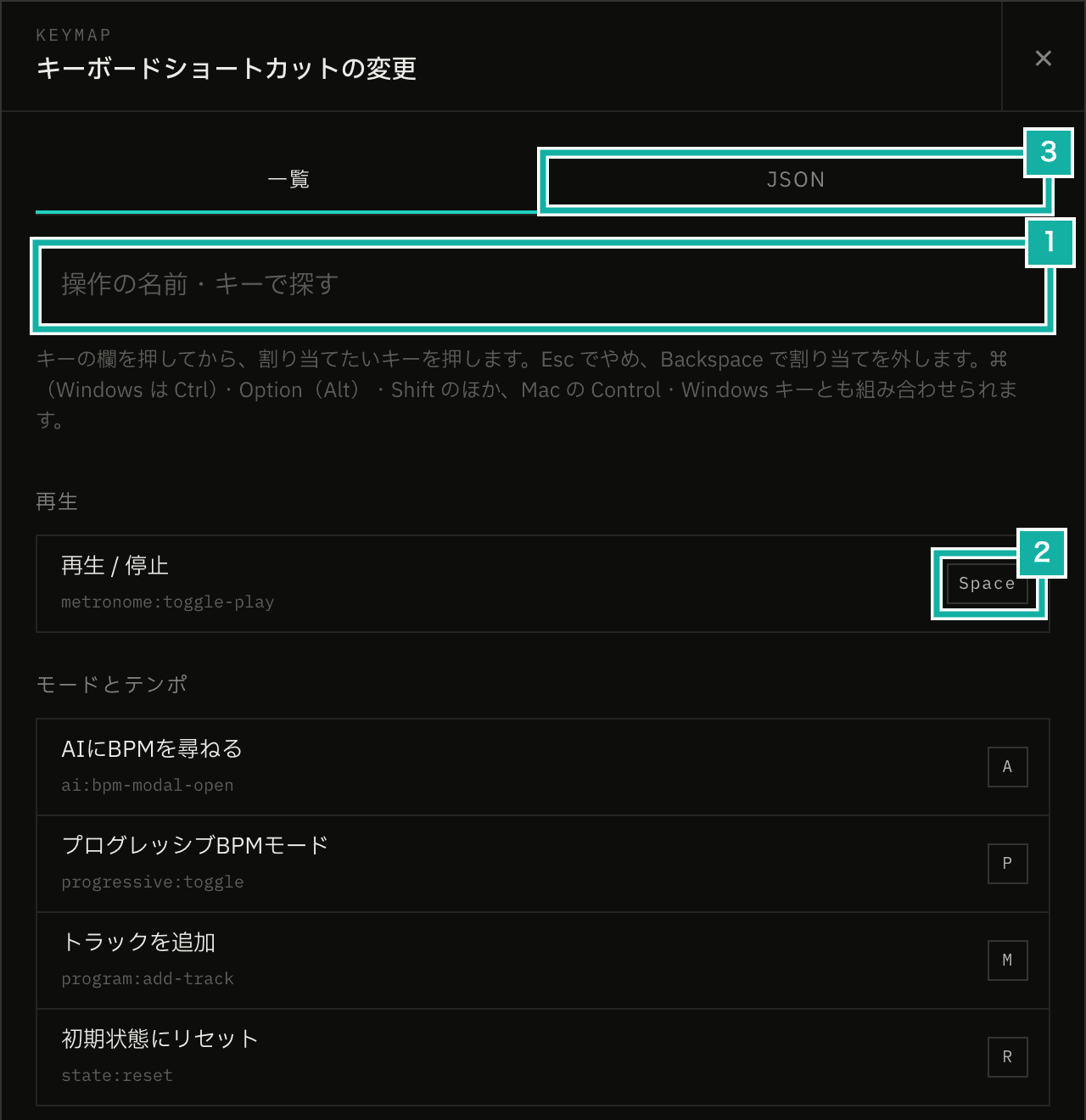
- Search by action name or key
- The key cell. Click it, then press the keys to assign
- A tab for writing all your shortcuts as JSON
Click a key cell, then press the keys you want on your keyboard, and that becomes the shortcut. Press Esc to cancel, or Backspace to remove the shortcut.
As in Zed, a key is stored as a string of modifiers and a key joined by -, such as mod-shift-z. mod is ⌘ on Mac and Ctrl on Windows, so the same settings work on both. The Mac's Control key is stored separately as ctrl, and the Windows key as win; a shortcut that uses one of them only works on a device that has it. You can even assign a "Hyper" key, where you hold Control, Option, Shift, and ⌘ together.
Key names on screen are written the way your OS menus write them: symbols joined together on Mac, like ⇧⌘Z, and Ctrl+Shift+Z on Windows.
One key, one action
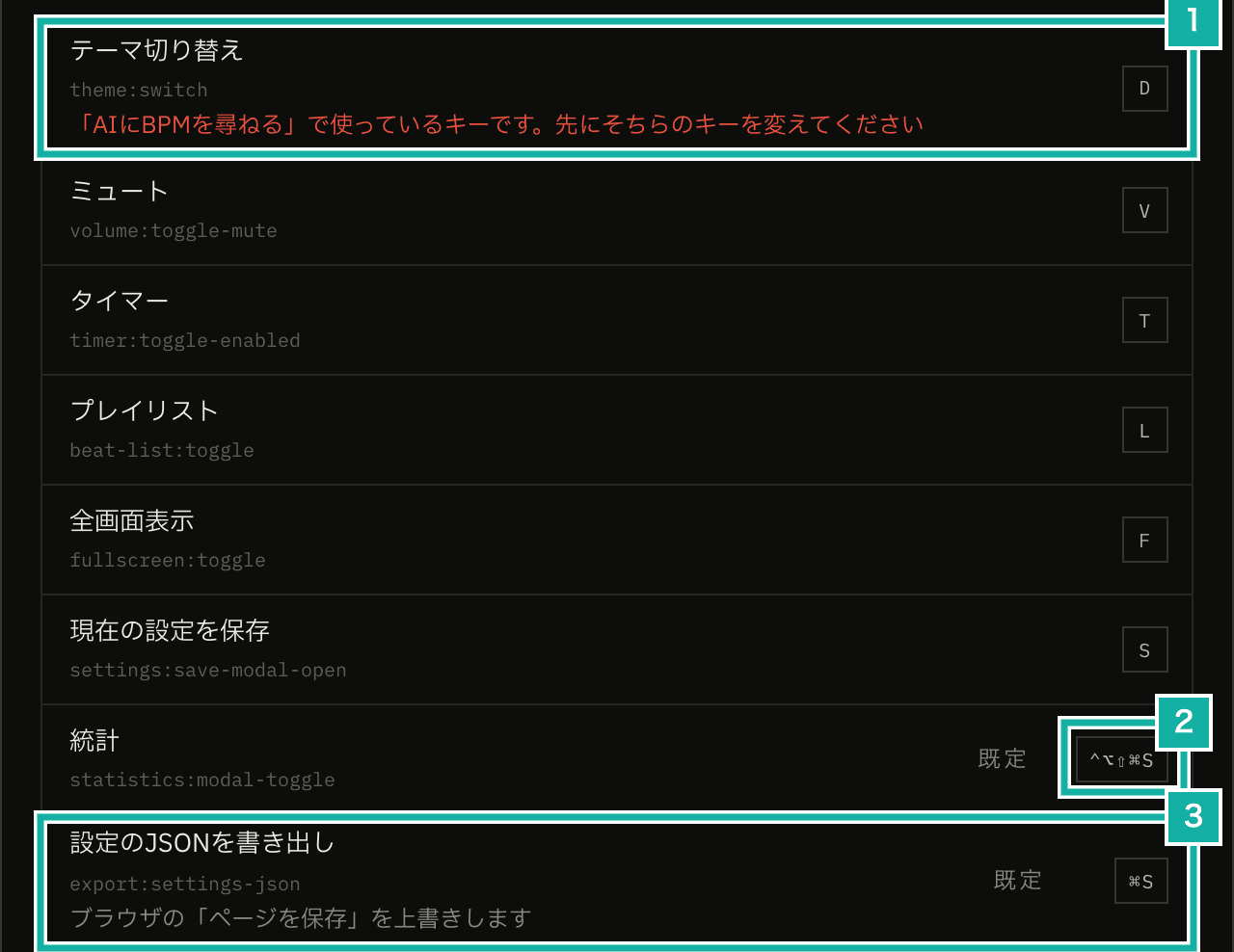
- Pressing a key another action uses doesn't assign it, and the row says why
- Hyper keys that include the Mac's Control key can be assigned
- For keys the browser uses, the row says what they override
You can't assign a key that another action already uses. The editor lists one action per row, and if you press a key that's already in use, that row tells you which action is using it.
Zed's keymap editor, its screen for assigning keys, accepts the same key for two actions and marks both rows. We started out the same way, but in use, the screen didn't tell you which action would actually run. So now, if you want a key that another action uses, you change that action first.
You can assign keys the browser uses, such as ⌘R (reload). Whether to use such a key is the user's call, so instead of blocking it we just say "Overrides the browser's Reload". The exceptions are ⌘W, ⌘T, and ⌘N: Chrome handles them itself to open and close tabs and windows without passing them to the page, so they wouldn't work anyway. Only these three (including their Shift versions) are refused.
Apps that grab keys at the OS level also need care. When we pressed Hyper+L in a key cell, ⌘V showed up in the cell. We had a macro in Keyboard Maestro, an app that automates keystrokes, that types "LGTM" on Hyper+L, and it pastes the text with ⌘V. The page can't see keys that never reach the browser, so the editor shows exactly the key that landed in the cell, and you can notice when it differs from what you pressed.
Keys per BPM or language
Actions with a value attached (a BPM or a language) can have keys too, like "set BPM to 120" or "switch the language to 日本語". You add a row per value and assign a key to each.
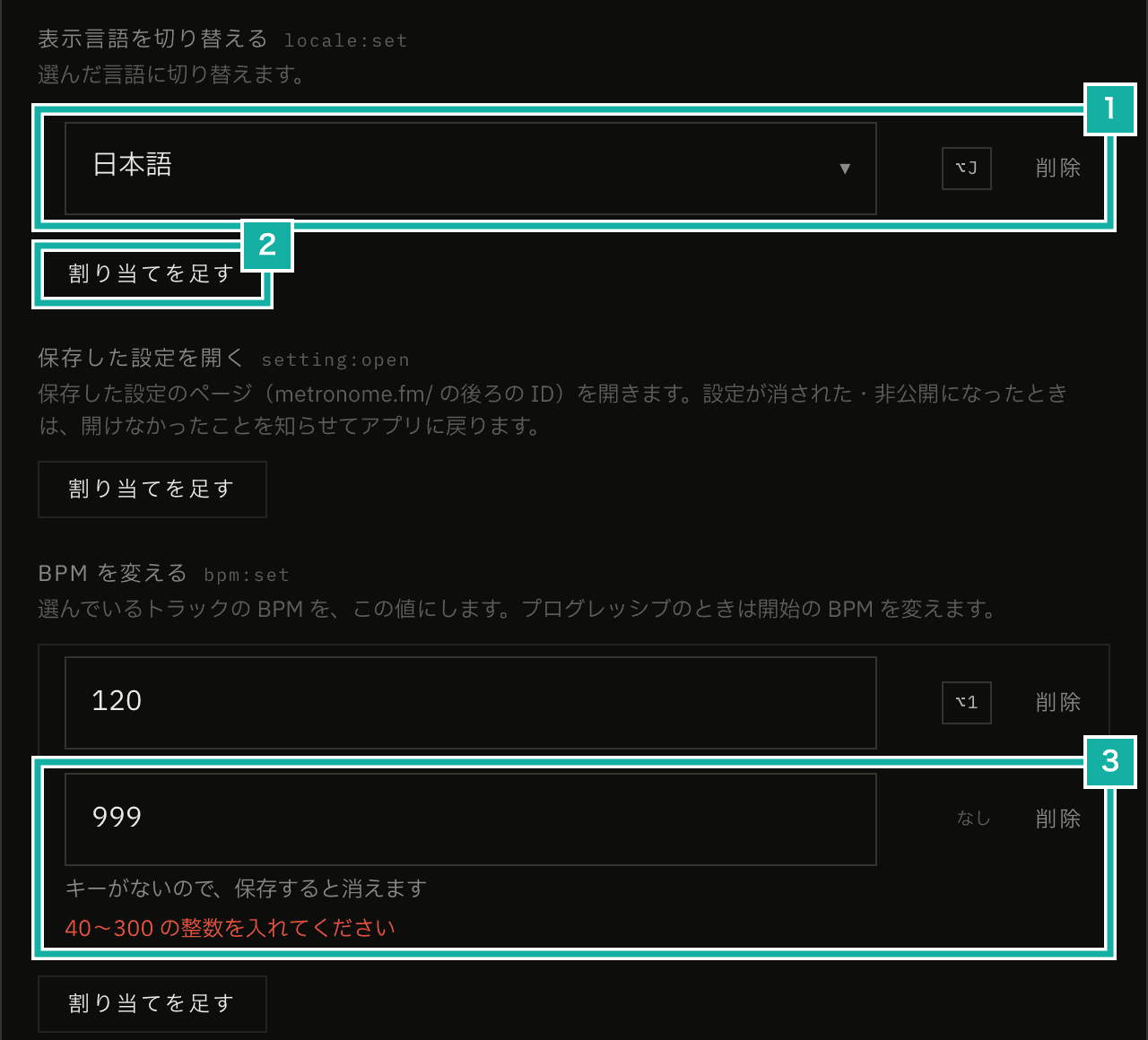
- Choose a language and assign a key to that row
- Adds one more row for a value and a key
- A row with an invalid value blocks saving until you fix it
For now, three actions can have a value.
Action | How you enter the value |
|---|---|
Switch language | Choose from the supported languages |
Open a saved setting | Type the setting's ID |
Set BPM | Type a whole number from 40 to 300 |
At first, the app provided one row per language, like "switch to 日本語" and "switch to English". The number of languages is fixed, so we thought that would be enough. But BPMs and saved settings can take any number of values, and rows prepared in advance can't cover them. So we rebuilt it the way Zed's actions that take a value (an argument) work: you add a row per value yourself.
Shortcuts are saved as JSON, and for an action with a value, the value-to-key pairs are nested under the action. You can also write this JSON directly in the JSON tab, covered later.
{
  "bpm:set": { "120": "alt-1", "90": "alt-2" },
  "locale:set": { "ja": "alt-j" }
}A key that opens a saved setting just opens that setting's page (the URL with the setting's ID after /). We don't check whether the setting exists, either when you assign the key or when you press it. Settings can be deleted or made private later, and updating the shortcuts every time that happens would only add work.
A setting page that can't be opened was already treated as not found (404) and sent you back to the app. It did so without saying anything, though, so to someone pressing a key it looked like nothing happened. Now it tells you "This setting couldn't be found" when it goes back. The same message appears when a shared link no longer works.
Fuzzy search
As more actions become assignable, finding one by scrolling gets harder. The search field at the top looks through action names (like Add track), action IDs (alphanumeric names like program:add-track), and keys.
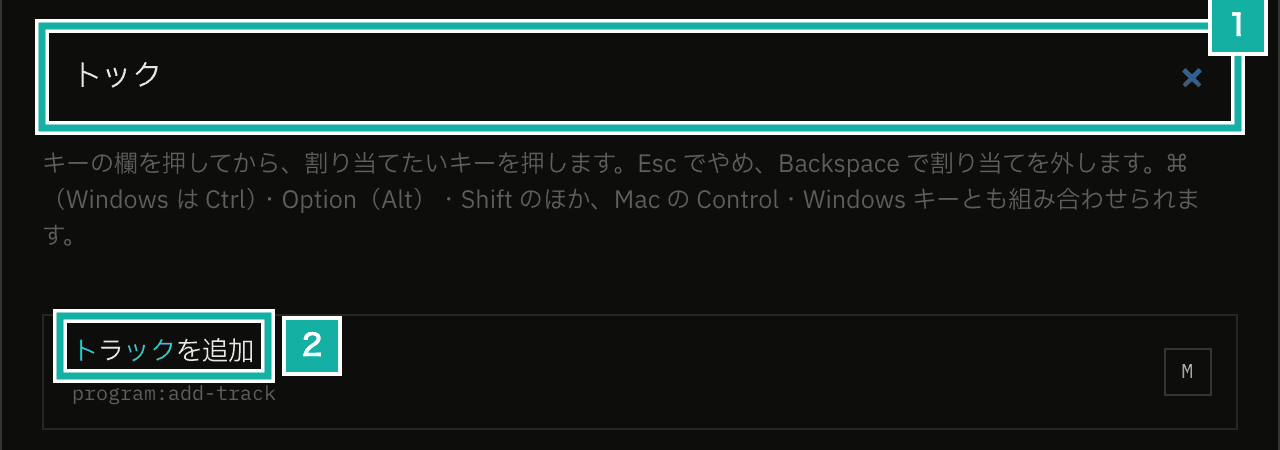
- Type トック into the search field
- The matching characters (ト and ック) are highlighted
The search is fuzzy. If the characters you type appear in order, it's a match even with gaps between them. Typing "トック" finds "トラックを追加" (Add track). It's the same idea as the command palette in VS Code or Zed.
Each match gets a score, and the best matches come first. Characters that match in a row, and characters that match at the start of a word (add or track in program:add-track), score higher, and gaps lower the score.
// Match one character at a time, adding points for consecutive matches and word starts
state.score +=
  SCORE.match +
  (previous !== undefined && gap === 0 ? SCORE.consecutive : 0) +
  (isWordStart(text, found) ? SCORE.wordStart : 0) -
Math.min(gap * SCORE.gap, SCORE.maxGapPenalty);Before comparing, each character is normalized. Upper and lower case, hiragana and katakana, full-width and half-width, and accented and plain letters (é and e) count as the same character. Typing "とらっく" in hiragana also matches.
To highlight the matching characters, the search also returns their positions. The tricky part was characters whose length changes when normalized. For example, "㌔" becomes the two characters "キロ" under NFKC, the normalization that unifies full-width and half-width forms, which shifts the positions of everything after it. Such characters are compared as they are, without normalizing, so the length stays the same.
Search in languages you aren't viewing
Search also matches names in languages other than the one you're viewing. Typing "add track" in the Japanese UI, or "トラック" in the English UI, both find the Add track row.
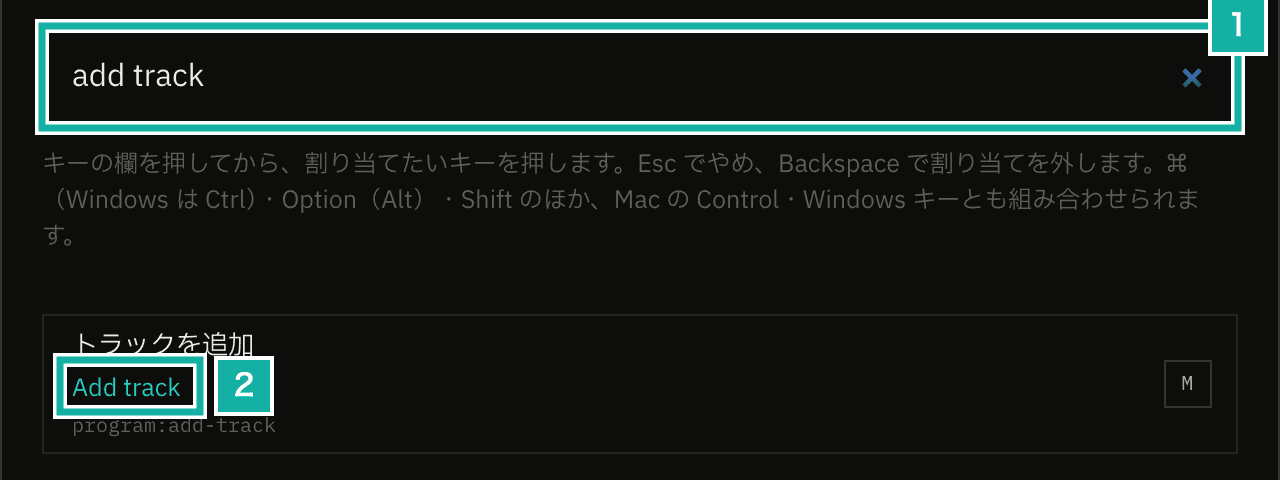
- Type add track in English into the search field
- The matching English name is shown on the second line of the row
The browser used to receive action names only for the language being viewed, so names in other languages couldn't be searched. Sending every translation would be heavy, so the server loads just the shortcut action names for all languages and sends them to the browser. It's about 20 names per language, so even with more languages it's a few KB.
// Load only the shortcut action names for every language and pass them with the translations
const loadKeymapSearchLabels = async () =>
  Object.fromEntries(
    await Promise.all(
      SUPPORTED_LOCALES.map(async (locale) => {
        const messages = await import(`../messages/${locale}.json`);
        return [locale, messages.default.mfm.dialogs.keyboardShortcuts.items];
      }),
    ),
);When a match comes from a name in another language, that name is shown in the row. Otherwise, the characters you typed would appear nowhere in the row, and you couldn't tell why it matched.
Write JSON and share it as a file
In the JSON tab, you can write all your shortcuts at once. Save that JSON as a file and drop it on the screen to load it, which is also handy for moving to another device or sharing with someone.
{
  "type": "metronome.fm/keymap",
  "version": 1,
  "bindings": {
    "theme:switch": "shift-d",
    "volume:toggle-mute": null,
    "bpm:set": { "120": "alt-1" }
  }
}The rules are the same as Zed's: actions you leave out keep their default keys, and null removes a shortcut.
In this app, your settings (BPM, beats, tracks) can also be exported as JSON and loaded by dropping the file. To tell which kind of JSON a dropped file is, both files start with a type. The app first reads type to decide which kind of file it is, then checks its contents. It's the same approach as the "type": "excalidraw" in Excalidraw files.
When loading, if there's an unknown action, an invalid value (an unsupported language, a BPM out of range), or two actions on the same key, the app explains why and loads nothing from the file. Loading only part of it would leave you unsure which parts made it in.
Keeping single-character keys usable
Single-character shortcuts (a key like A or K with no modifier) are rare in editors. Typing is the main task there, so a shortcut can't be told apart from text.
A metronome is an app you operate more than you type into. Like YouTube's K (play), M (mute), and F (full screen), single keys are quicker. So we kept them, and they don't fire while you're typing in a text field.
While building this, we also found a bug specific to single-character keys. Pressing A with the menu open opened the AI screen instead of moving to the item starting with A. Menus let you type a letter to jump to an item that starts with it, and the shortcut received the key before the menu did.
Now, shortcuts stop while a menu or modal is open. The only keys that still work are the ones that close what's open (such as ? to close the shortcut list).
What's next
We'll keep adding actions you can assign. We're thinking about raising or lowering the BPM by 1, tap tempo, moving to the previous or next track, and choosing a theme or accent color.
With more actions, the default keys need a second look too. The current defaults were picked by first letter back when there were only a few actions. We plan to clear all the default keys once and reassign them so the actions you use most get the easiest keys. Keys you've changed yourself will stay, because only the changes from the defaults are saved.