We made an intro video for Metronome.fm. It runs 30 seconds: 15 bars of 4/4 at 120 BPM. Every scene change, every piece of text coming in or out, every move our mascot Friko makes, and every metronome click sits on the beat.
We didn't use video editing software. Each scene is drawn in HTML and SVG and animated with a GSAP timeline, and HyperFrames renders it to an mp4. This post covers how we wrote the video to follow the beat, and how we checked that it actually landed on the beat.
Turning HTML into video with HyperFrames
HyperFrames is a tool that renders pages written in HTML to video. It is published by HeyGen and runs as an npm command (hyperframes).
The content of the video is written in HTML, CSS and JavaScript, just like an ordinary web page. Attributes on elements decide what is shown and when. In this video, the 30-second frame (index.html) holds the scenes one after another, and each scene's start time and length in seconds are written with data-start and data-duration. The scene's content lives in a separate HTML file, pointed to by data-composition-src.
<!-- Bar 2: the hook, "Hey Friko" -->
<div
  data-composition-id="hook"
  data-composition-src="compositions/hook.html"
  data-start="2"
  data-duration="2"
  data-width="1920"
  data-height="1080"
></div>The motion inside a scene goes on a GSAP timeline created in a paused state (paused), so it never plays on its own, and the timeline is registered on window.__timelines. When rendering, HyperFrames opens the page in headless Chromium, steps each registered timeline forward one frame at a time, captures each frame, and assembles them into an mp4 with FFmpeg. Since it isn't recording playback in real time, heavy scenes don't drop frames.
For the same reason, scenes can't use Date.now() or Math.random(). So that every render produces the same frames, time comes only from the timeline's playhead. During development we used hyperframes preview, which opens a preview page in the browser where you can scrub through the video.
Redrawing the scenes instead of recording them
The first prototype was a sequence of screen recordings of the feature demos on our landing page, the top page of the site (progressive tempo, custom beat, AI BPM and so on). But a recording moves at whatever speed it was captured at. The custom beat demo plays at 102 BPM, so to place it in a 120 BPM video we had to shrink the recording to 102/120 of its length. Even shrunk, we can't choose when things move inside a recording, so they don't land on the video's beat grid (the beats divided into sixteenth notes).
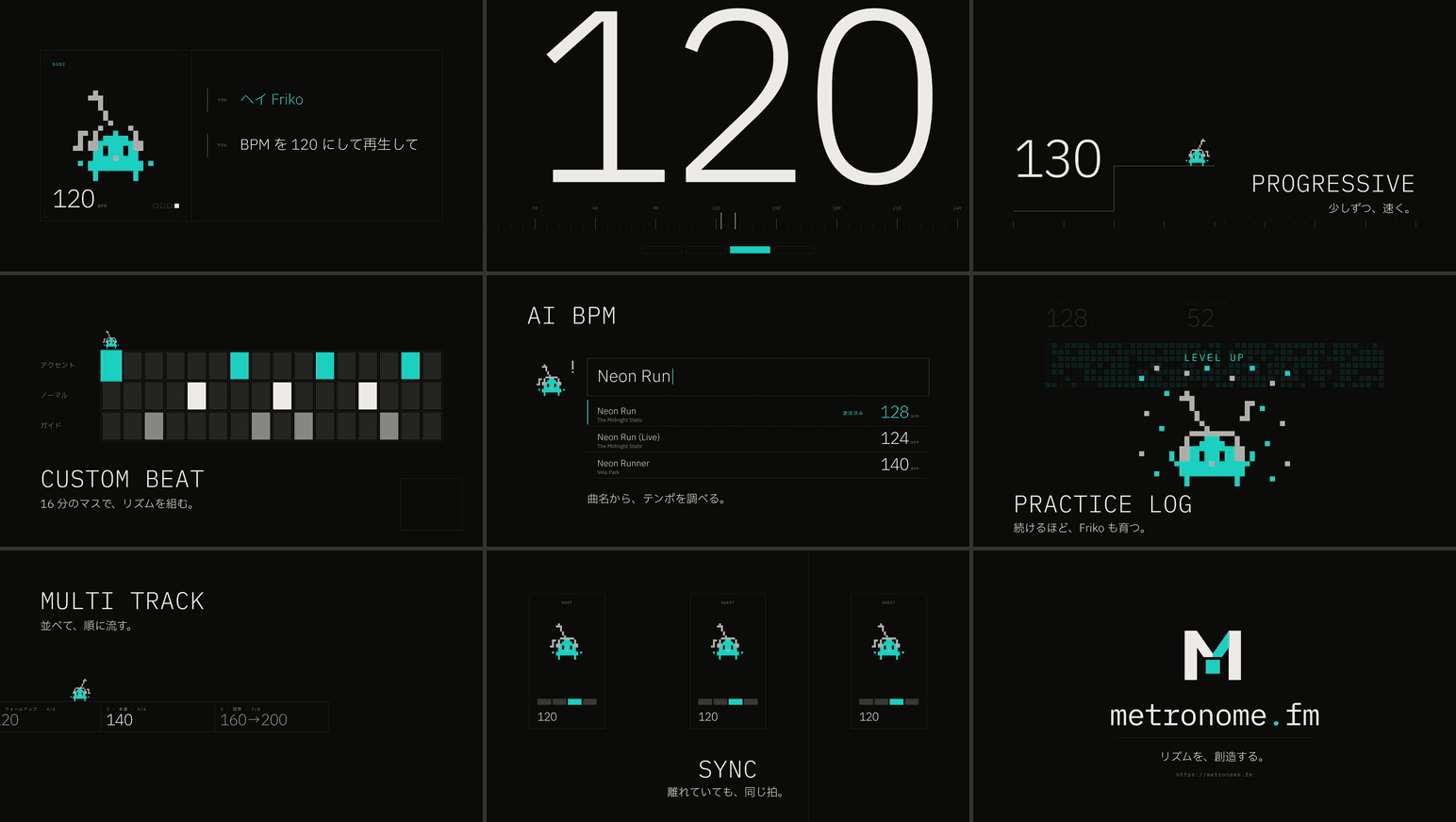
So for the final cut we dropped the recordings and redrew all 11 scenes in HTML and SVG. The BPM readout, the tempo ruler, the 16-step custom beat grid and the multi-track strips are redrawn inside the video to look the same as in the app. That way we decide exactly when each step lights up and when each number changes, and we can put those moments on the beat.
Writing time in beats, not seconds
Inside a scene, we never write a time in seconds. Every time is written as "which bar, which beat, which sixteenth". Turning bars and beats into seconds takes one tiny function.
const BPM = 120;
const BEAT = 60 / BPM;
const BAR = BEAT * 4;
const SIXTEENTH = BEAT / 4;

// Bar (from 1), beat (from 1) and sixteenth (from 0) to seconds from the start of the video
const at = (bar, beat = 1, sixteenth = 0) =>
  (bar - 1) * BAR + (beat - 1) * BEAT + sixteenth * SIXTEENTH;

// A clock for one scene. Pass the bar the scene starts on, and it returns seconds with the scene start as 0
const scene = (startBar) => (bar, beat = 1, sixteenth = 0) =>
at(bar, beat, sixteenth) - at(startBar);Each scene's timeline places its motion with this clock. For example, in the last scene (bar 15), this is how Friko stops the pendulum on its head.
const t = scene(15);
book.show(tl, "right", t(15, 1)); // Beat 1: swing the pendulum to the right
book.show(tl, "rest", t(15, 1, 2)); // The offbeat: stop the pendulum straight upBecause there are no seconds in the code, you can read which beat each motion sits on. If we change the BPM, the timing of everything inside a scene stretches or shrinks in proportion.
Audio is loaded from HTML <audio> elements, which need times in seconds. We don't write those by hand either: a script computes the seconds from beats with the same formula and writes them into index.html. The clicks use the same sound files as the app, placed at the beat times.
Fixing set calls missing from a scene's first frame
While building, we noticed that some images meant to switch on the first beat of a scene were missing from that scene's very first frame. A tl.set placed at time 0 on a GSAP timeline doesn't render when the playhead is at 0, which is the first frame of the scene.
tl.set changes values at a given time on the timeline, while gsap.set changes them right away when it is called. We fixed it in the function that creates each scene's timeline, by replacing any set at time 0 with a gsap.set.
MFM.timeline = () => {
  const tl = gsap.timeline({ paused: true });
  const set = tl.set.bind(tl);
  tl.set = (target, vars, position) => {
    if (typeof position === "number" && position <= 1e-6) {
      gsap.set(target, vars); // At time 0, apply from the first frame
      return tl;
    }
    return set(target, vars, position);
  };
  return tl;
};Counting whether the rendered motion lands on the beat
Writing everything in beats doesn't guarantee that the rendered video is on the beat, so that needs a separate check. You can't see a one-frame offset by eye.
We wrote a script that pulls every frame out of the rendered video. ffmpeg turns each frame into a 192×108 grayscale image, and the script measures how much each frame differs from the one before. A frame where the difference jumps is treated as the start of a motion, and the script checks that it is no more than one frame away from the sixteenth-note grid. At 30 fps and 120 BPM, a sixteenth note is every 3.75 frames.
python3 scripts/check-beat-sync.py renders/intro-ja.mp4For the Japanese version, 76 motion starts were found across 900 frames, and one of them was off the grid.
コマ数 900・動き出し 76 個・格子から外れたもの 1 個
  26.300 秒(コマ 789): 16 分の格子から +1.50 コマ・差 1.96
(The script prints in Japanese: 900 frames, 76 motion starts, 1 off the grid, at 26.300 s, frame 789, +1.50 frames from the sixteenth grid. The last value, "difference", is how much the frame changed from the one before, as the average change in gray level.)
The one off the grid is where the timer rolls from "02:59" to "03:00". In the code that motion starts exactly on the beat, but it eases in slowly (power2.in), so the first few frames barely change and the jump gets detected a little late. The motion isn't off the beat; the check just catches it late, so we left it as is.
We also checked the clicks. We ran the rendered audio through a high-pass filter, measured where each click starts, and confirmed that every click starts within 0.2 ms of its beat.
Drawing Friko from the app's pixel art
The star of the video is our mascot, Friko. Friko is born on the very first beat, gets called with "Hey Friko" in the voice control panel, guides you through the feature scenes, and turns into the logo on the last beat.
In the app, Friko's pixel art is stored as strings with one character per pixel (# for the body, o for the eyes, k for the lines). For the video we copied those strings as they are and drew each character as an SVG square. Just like in the app, on every beat the video switches to a copy of the sprite mirrored around its vertical axis (the column at x = 9), which swings the pendulum on Friko's head left and right.
We only used forms of Friko that are already public. Friko changes form as your practice level goes up, but most of those forms are still a secret, so we limited the video to the voice control panel form and the already public tempoMaster form (from Lv.20). The new frames we drew for the video, such as the one where Friko stops the pendulum straight up and closes its eyes, are written as the same kind of strings.
On the last beat, Friko and a pixel art version of the logo become one-color silhouettes and swap every sixteenth note. After that, the pixel art logo switches to the crisp vector logo.
// Beat 2: hide the colored Friko and swap the Friko and logo silhouettes every sixteenth note
tl.set(frikoNode, { opacity: 0 }, t(15, 2));
["rest", "logo", "rest", "logo"].forEach((name, i) =>
  shadow.show(tl, name, t(15, 2, i)),
);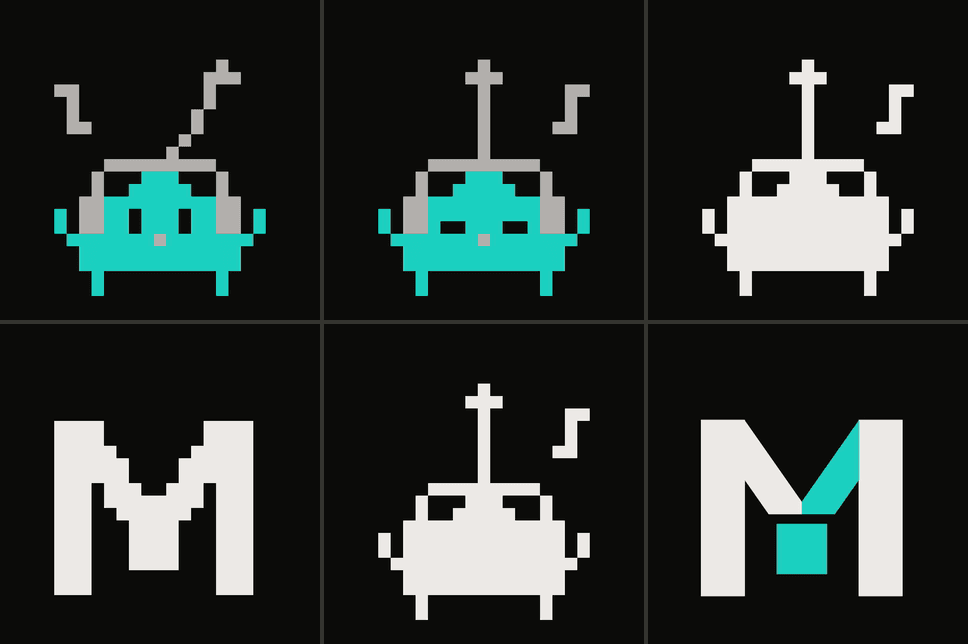
The pixel art logo takes the M area of the logo mark (drawn on a 48×48 grid) and merges each 2×2 block of units into one pixel, giving a 16×14 sprite. It sits on the same 20×20 canvas as Friko, so nothing shifts when the silhouettes swap.
Rendering in 4K
We uploaded the video to YouTube in 4K. In 4K, HyperFrames redraws the page at twice the pixel density, so lines, text and pixel art stay crisp instead of looking upscaled. The renders we publish run inside Docker, so differences in fonts or Chrome don't change how the video looks.
Since the frames are mostly flat color, the actual bitrate stayed around 3 Mbps even in 4K.