One morning, I opened the Statistics screen (it opens as a modal) on Metronome.fm in production and got "Failed to fetch statistics." instead of the charts. A hard reload fixed it.
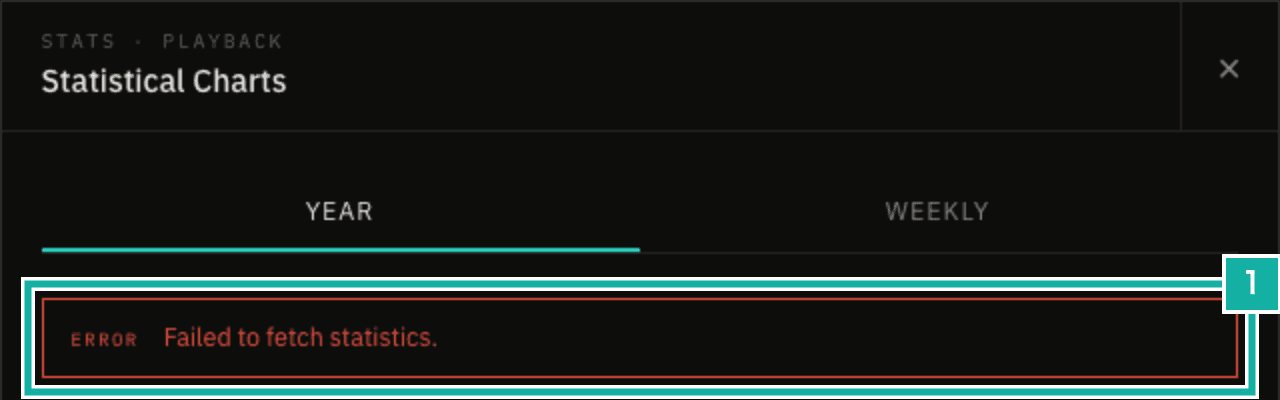
- The statistics failed to load, and an error appeared instead of the charts
The cause was a tab that had been open since before a deploy. It called a Server Action (a server function you can call from the browser) on the newly deployed server, still using the old ID. This mismatch between the client and server versions is called version skew.
We already showed a toast asking you to reload to handle this. Looking into it, I found that the toast's Reload button could not be pressed while a modal was open. This post covers what version skew is and what it does to Server Actions. Then it covers the Vercel Skew Protection settings we turned on this time, and why the button could not be pressed and how we fixed it. Finally, it covers how the feature that syncs your sound and display settings across devices while signed in never showed the toast.
What version skew is
A web app loads its JavaScript when you open the page, and keeps using that same code until you close the tab. The server, on the other hand, is replaced with a new version on every deploy.
So if a deploy happens after you open the page, the tab keeps running the old JavaScript while the server runs the new version. That mismatch is version skew.
Metronome.fm is an app you keep open while you practice, so I think tabs often stay open for a long time. On top of that, changes go to production as soon as they are merged into main, so we deploy often. That morning, we had deployed four times before I opened the Statistics screen.
The Next.js documentation lists three things version skew can cause. Server Function is the general name for server functions, including Server Actions.
- The client requests JavaScript or CSS files from the old build that no longer exist on the server
- The client calls a Server Function with an ID from the old build that the server no longer recognizes
- Page data prefetched by the old build does not match the new server
We hit the second one.
Server Actions are called by ID
A Server Action is a server function you can call from the browser. A function marked with "use server" can be called from a client component like a normal function.
Under the hood, the browser receives an ID rather than the function itself. When you call it, the browser sends a POST request with that ID, and the server looks up the function by ID and runs it.
These IDs are created at build time. According to the Next.js documentation, they are encrypted, non-deterministic values that may be recalculated between builds for security. So the same function can get a different ID after a deploy.
When an old tab calls with an old ID, the new server has no function with that ID. The Next.js server responds with status 409 and the header x-nextjs-action-not-found: 1. The browser sees this header and throws UnrecognizedActionError.
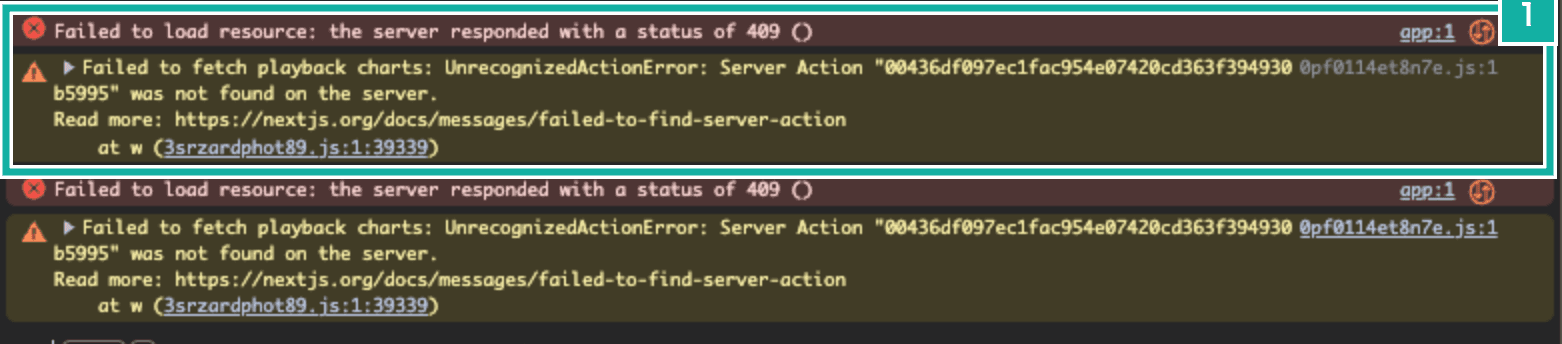
- The server returned 409, and the browser threw UnrecognizedActionError saying the Server Action was not found
The Next.js server code has a comment saying that, without Skew Protection, this is expected to happen occasionally, so the server logs it as a warning instead of an error.
Turning on Vercel's Skew Protection
Vercel has a feature called Skew Protection that prevents this mismatch.
When it is enabled, Next.js in the browser attaches a deployment ID to the requests it sends. This is not the Server Action ID; it identifies the deployment that served the page. It applies to loading files such as JavaScript, page navigations, and Server Action calls. Vercel reads that ID and routes the request to the old deployment. Requests from an old tab are handled by the old deployment, so the IDs always match.
However, Skew Protection is only available on the Pro and Enterprise plans. Metronome.fm had been running on the Hobby plan, so the switch in the settings could not be turned on.
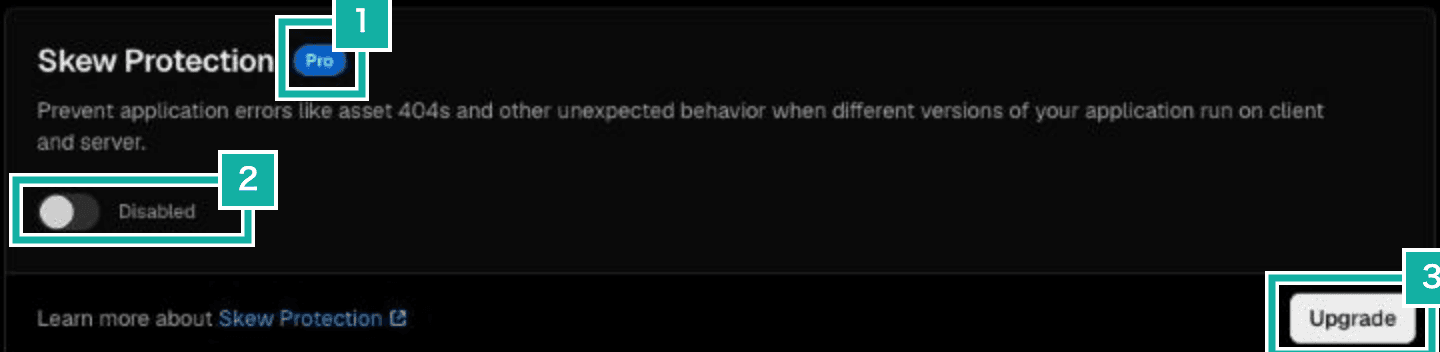
- A badge showing that this is a Pro plan feature
- The switch stays Disabled
- Enabling it requires upgrading the plan
Prompted by this, we upgraded to Pro and turned on Skew Protection. The setting is under Settings > Advanced in the project.
Maximum Age is how long requests are routed to an old deployment. The choices are 4 hours, 12 hours, 1 day, 7 days, and 30 days, and it was set to 12 hours when I opened the settings. We chose 7 days so that tabs left open for a few days are covered too.
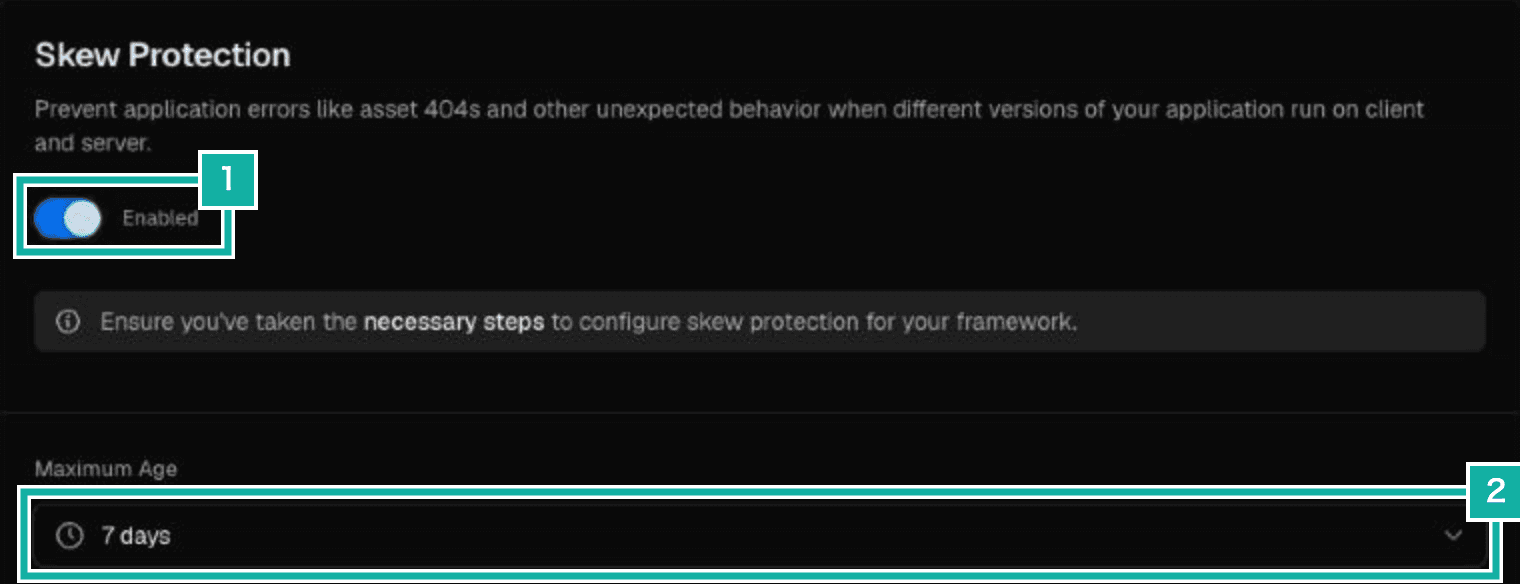
- Set the switch to Enabled
- We set how long requests go to an old deployment (Maximum Age) to 7 days
A longer period also means requests keep going to an old version that has a bug. In that case, select the deployment with the fix in the deployment list and set a Skew Protection Threshold from its menu. Requests are then no longer routed to deployments older than that.
The documentation also says to enable access to System Environment Variables, which Next.js needs to read the deployment ID. This setting is at the bottom of Settings > Environment Variables in the project. When I checked, it was already enabled.

- When this is checked, Next.js can read the deployment ID
After changing the settings, they take effect from the next production deploy.
Even with Skew Protection on, failures in old tabs do not disappear entirely. Requests from a tab left open longer than 7 days, or from a page of a deleted deployment, still reach the new deployment. So the app still needs to decide what to do when the versions drift apart.
A toast that asks you to reload
The toast from the start of this post was our fallback while we were on the Hobby plan. We kept it after turning on Skew Protection.
We detect whether a Server Action failed with UnrecognizedActionError using unstable_isUnrecognizedActionError from Next.js. When it does, we dispatch a custom event on window, and the component that shows the toast listens for it.
import { unstable_isUnrecognizedActionError } from "next/navigation";

export const STALE_DEPLOYMENT_EVENT = "mfm:stale-deployment";

export const isStaleDeploymentError = (error: unknown): boolean =>
  unstable_isUnrecognizedActionError(error);

/** Signal the app to show the toast that asks you to reload */
export const notifyStaleDeployment = (): void => {
  if (typeof window === "undefined") return;
  window.dispatchEvent(new Event(STALE_DEPLOYMENT_EVENT));
};This check is not written at each place that calls a Server Action. We put it inside the app's logging functions (our own functions that write to the console and also send logs to a log collection service). Any call that logs its failure gets caught by this one check, wherever it happens. There is a logging function for errors and one for warnings. The check was in the error one: when it recognized a failure from an old tab, it logged it as a warning instead, since a reload fixes it.
The toast stays until you close it. We pass a fixed id to sonner, the toast library, so repeated failures still show a single toast.
The browser logs in Better Stack, the log collection service we use, show six UnrecognizedActionError entries in the three days up to October 19, 2026 (the period we keep logs for): four from the feature that syncs your sound and display settings across devices while signed in, and two from Statistics. The two from Statistics are from the time I opened the screen at the start of this post. The four from settings sync never showed the toast. The last section explains why.
It could not be pressed while a modal was open
I recreated the situation locally: open a modal, as with the Statistics screen, then show the toast. The toast appears on top of the modal, but pressing Reload does nothing.
The cause was how React Aria, which we use for modals, works. While a React Aria modal is open, it makes every element outside the modal inert. An inert element can still be seen, but it cannot be clicked or focused. This keeps keyboard and screen reader interaction from moving outside the modal.
The sonner element that renders the toasts sits outside the modal. So even though it appeared in front on screen, inert made it impossible to press.
Making it pressable
React Aria has a data attribute for elements that should not become inert. An element with data-react-aria-top-layer, and everything inside it, is left out. It is meant for things like toasts that are shown on top of a modal.
// Keep live announcer and top layer elements (e.g. toasts) visible.
for (let element of root.querySelectorAll(
  "[data-live-announcer], [data-react-aria-top-layer]",
))
visibleNodes.add(element);The sonner element does not accept extra attributes. So we wrapped sonner's whole Toaster, which lays out the toasts, in a container with this data attribute. The container uses display: contents so it does not affect the layout.
export const TOASTER_ATTRIBUTE = "data-react-aria-top-layer";

export const Toaster = () => (
  // sonner's elements do not accept attributes, so wrap them in a layout-neutral container with the marker
  <div className="contents" {...{ [TOASTER_ATTRIBUTE]: "true" }}>
    <SonnerToaster position="bottom-center" /* … */ />
  </div>
);React Aria looks for this data attribute at the moment the modal opens. The container exists from the time the page loads, so toasts are left out whether they appeared before or after the modal.
We also adjusted how a modal closes when you press outside it. So that pressing a toast does not close the modal as well, toasts are excluded from the check for outside presses.
<ModalOverlay
  // Keep the modal open when the playback bar at the bottom or a toast is pressed
  shouldCloseOnInteractOutside={(element) =>
    !element.closest(`[${UNCOVERED_BOTTOM_ATTRIBUTE}], [${TOASTER_ATTRIBUTE}]`)
  }
  /* … */
/>Now you can press Reload even with a modal open.
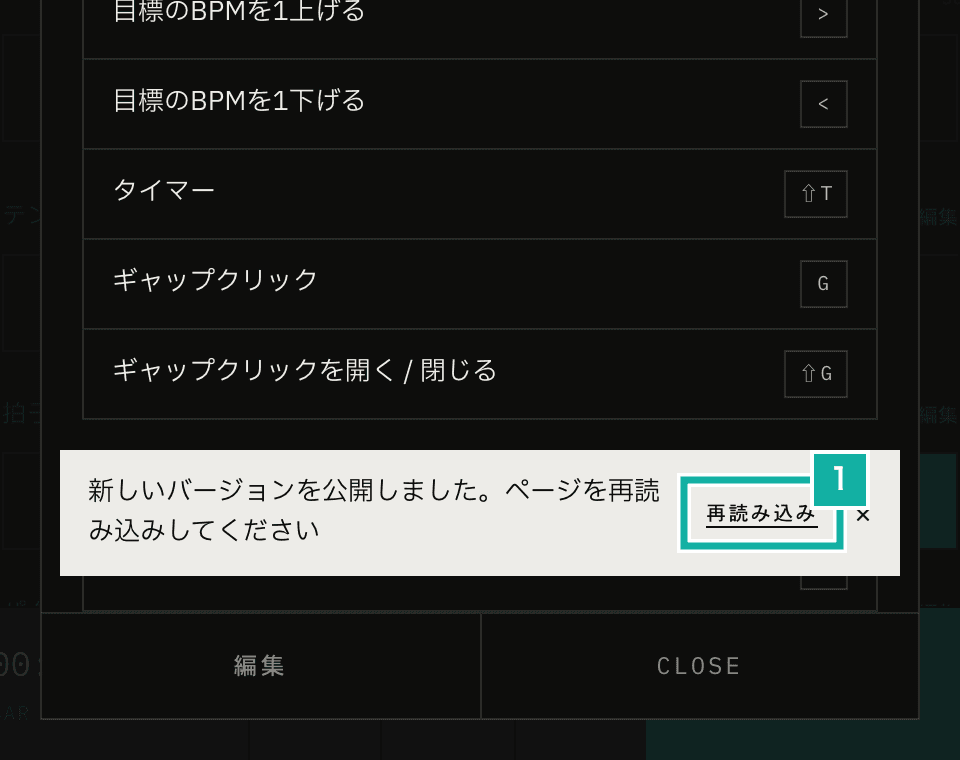
- The Reload button, which can now be pressed with the modal still open
We also added an E2E test. It recreates an old tab by answering Server Action POSTs with the x-nextjs-action-not-found header, opens a modal, and presses Reload. With the code from before the fix, the test failed because it could not press the button.
Showing the notice for settings sync too
This is the gap in settings sync I noticed while counting the logs. Settings sync failures, four of the six entries, never showed the toast.
Settings sync can retry at the next chance when it fails, for example when the connection drops. So it recorded failures with the warning logging function. The old tab check was only in the error one, so this path had no check at all. We added the check to the warning function as well, so the app asks you to reload whichever function records the failure.
Skew Protection makes failures in old tabs less likely. When one still happens, the reload notice now appears for both Statistics and settings sync, and you can press it even with a modal open.