Profile pages are here. At the top of your profile is a small tank floating in space, with its own ground, sky, and weather, where Friko, your practice buddy, swims. Friko levels up as you practice with the metronome and changes its look as it grows. You can decorate the tank however you like with M coins, which you earn by practicing.
M coins are used only inside the app. You can't buy them with money; you get them by practicing and by opening the app each day. This post covers what appears on your profile page and how to decorate the tank with M coins.
Your profile page
Your profile page appears once you've chosen a username in account settings, at /app/@username. From top to bottom, it shows the tank, your profile image, username, and bio, and your practice activity. You can also get there from the statistics screen, which you open from the app menu.
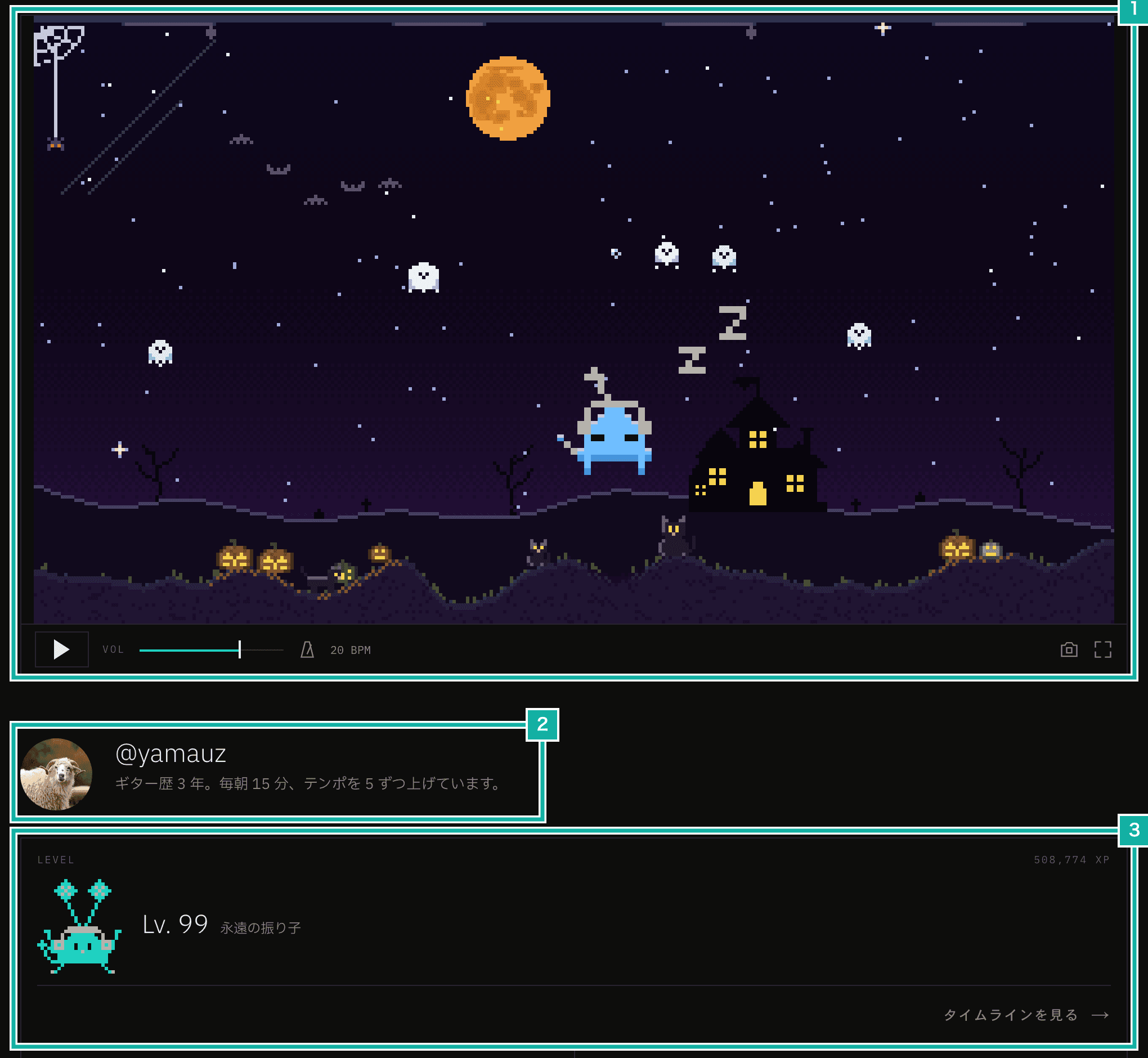
- The tank. Tap or click it and stars burst out
- Profile image, username, and bio
- Practice activity. Besides your level, it shows your practice streak in weeks, your total practice time, a practice calendar, and more
Visitors see your tank exactly as you've decorated it, while day and night in the tank follow each viewer's clock. Click the camera button under the tank to save an image of it as it is right then.
You can write a bio of up to 150 characters and 4 lines on the Profile tab in account settings. Links aren't allowed.
Public or private
By default, only you can see your profile. Turn on "Make my profile and timeline public" on the Profile tab in account settings to let others see it. Your practice timeline, a page for each level you've reached, is made public along with it.
While your profile is private, others see only your profile image, your username, and a note that the profile is private. They don't see the tank either. While it's public, you can turn off "Show my practice activity" under Advanced on the same tab to show only the tank, profile image, username, and bio.
How to get M coins
While you're signed in, you get M coins when you:
- Open the app each day (a little more if you also opened it the day before)
- Practice with the metronome (1 coin every 5 minutes, up to a daily limit)
- Complete a weekly quest (a practice challenge that changes each week)
- Reach a milestone in total practice time or in your weekly practice streak
- Level up
The M coins you get also show up under the notification bell at the top right. Click one of those notifications to open your tank.
Decorating the tank with M coins
To decorate the tank, click "Edit tank" under the tank on your own profile. Under the tank, you'll see how many M coins you have and two tabs, "Tank" and "Catalog".
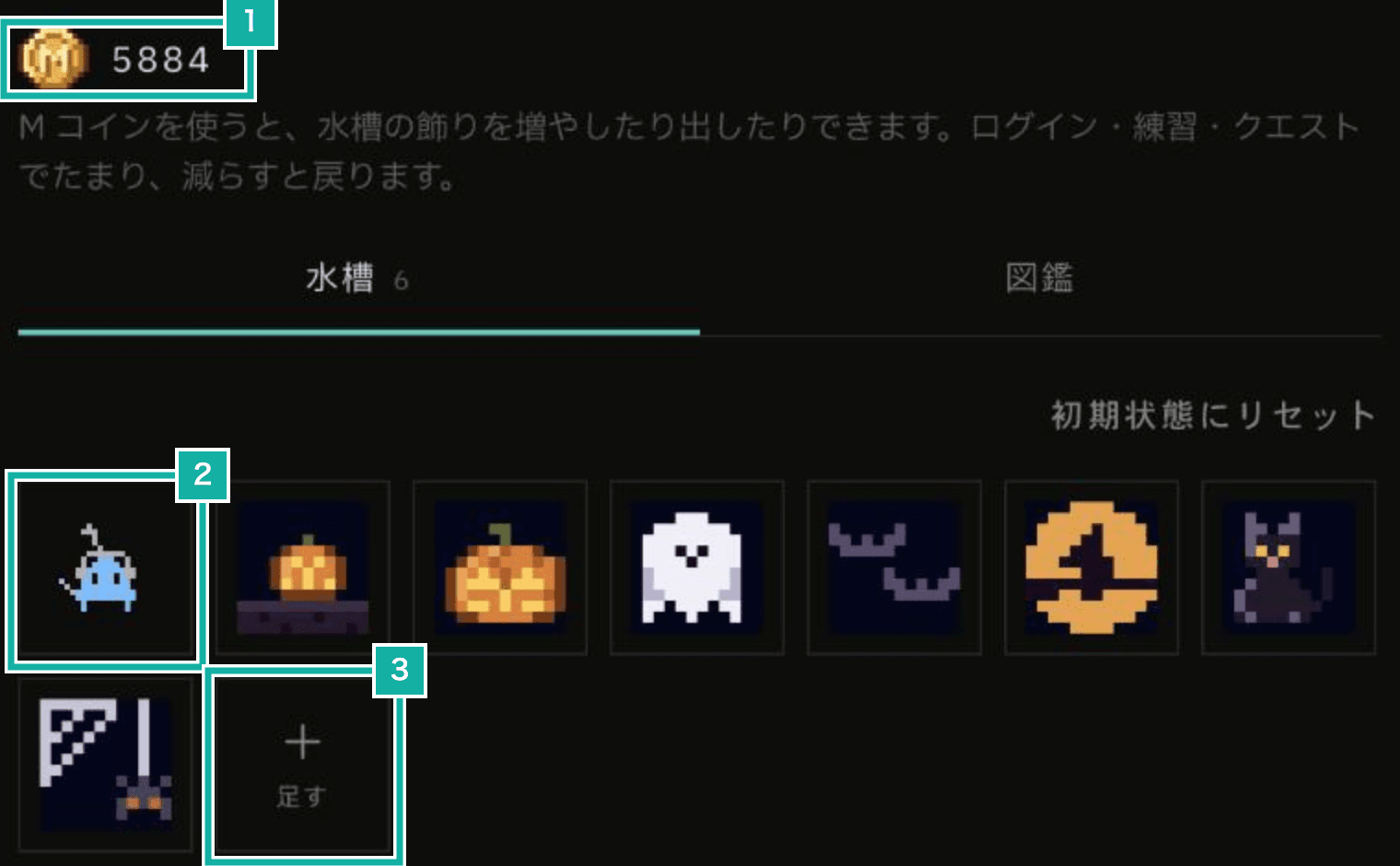
- Remaining M coins
- Friko. Choose its look and color
- The Add button. Opens the Catalog tab so you can choose more decorations
The Tank tab lists the decorations you've placed. Click one to open its settings.
What M coins are for
There are two ways to use M coins:
- Buy a decoration: get a new kind of decoration. The M coins you spend don't come back
- Add extras of one you own: put a second or third one in the tank. Remove extras and the M coins come back
The Catalog tab lists everything you can put in the tank. Except for the starter decorations (flowers, bubble vents, jellyfish, and crabs), you buy each kind here.
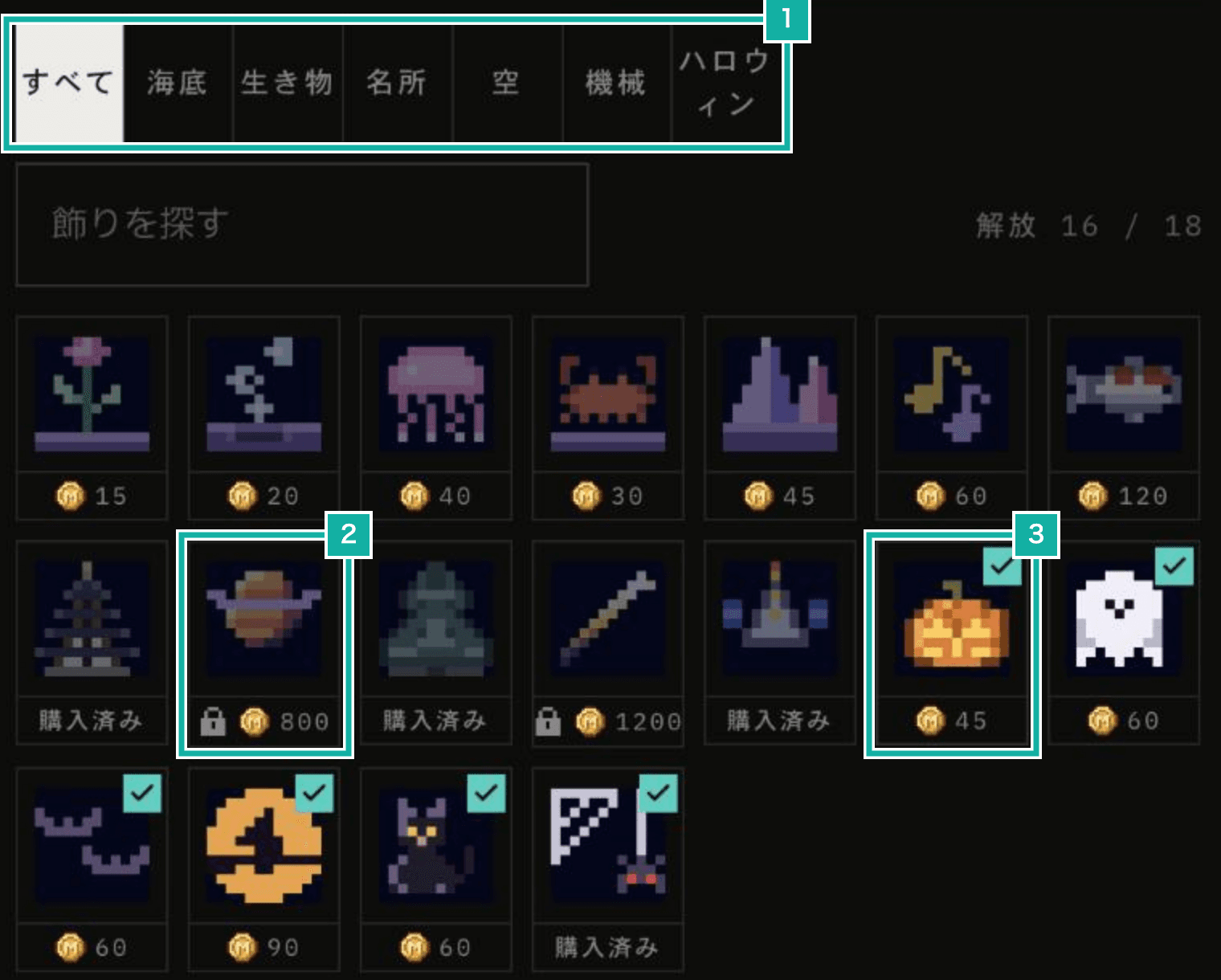
- Categories: Seabed, Creatures, Landmarks, Sky, Machines, and Halloween
- A decoration you don't own yet, with a lock and its price
- A decoration in your tank, with a check mark at the top right. For decorations you own, the number below is the price of one more
Click a decoration you don't own yet to see a live preview along with its price, so you know what you're getting before you buy.
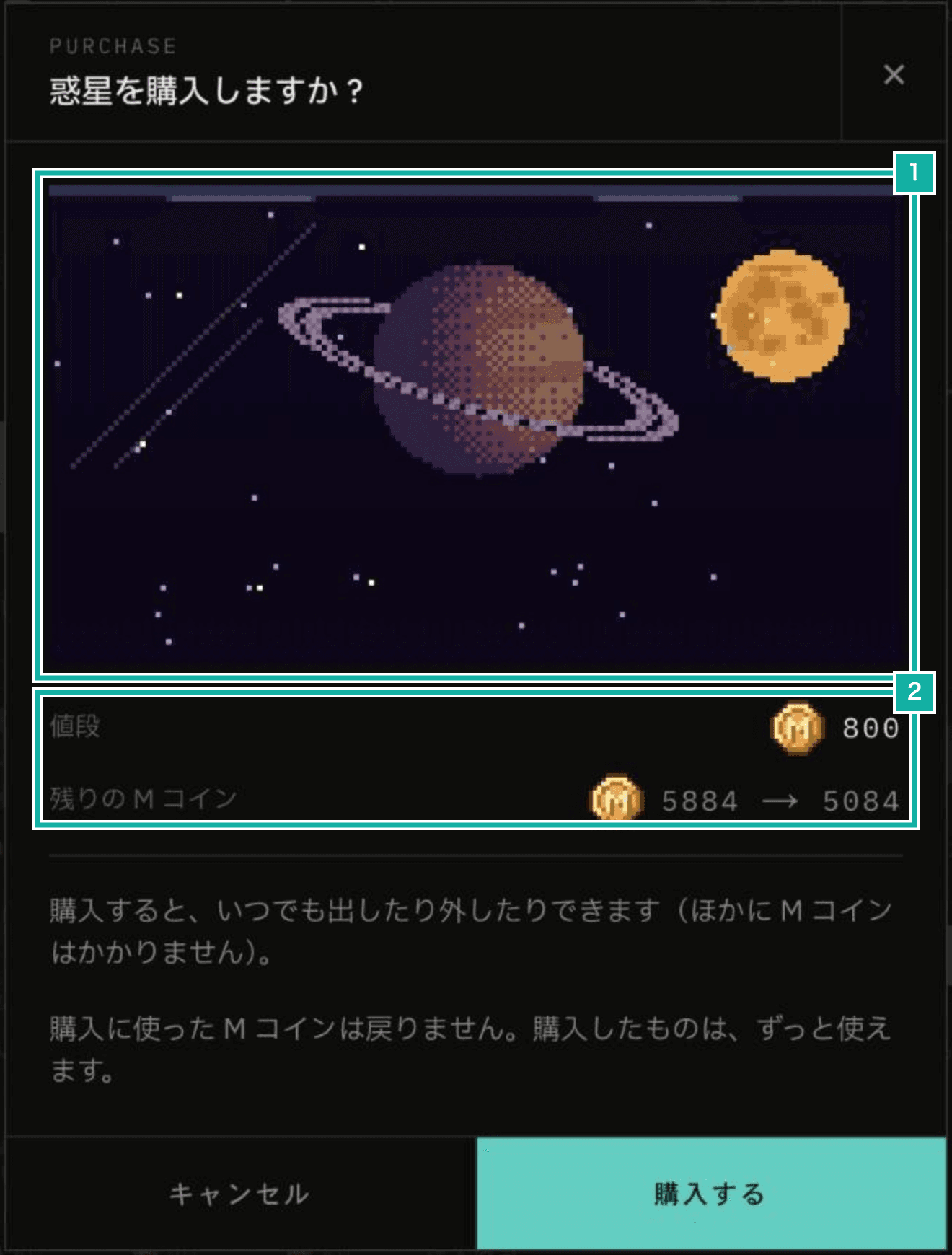
- A live preview of the decoration
- The price and the M coins left after buying
Once you buy a decoration, it's yours to keep. You can show it in the tank or hide it at any time.
Choosing how many to place
For decorations you can place more than one of, such as flowers, jellyfish, and jack-o'-lanterns, use the slider to choose how many. The maximum depends on the decoration.
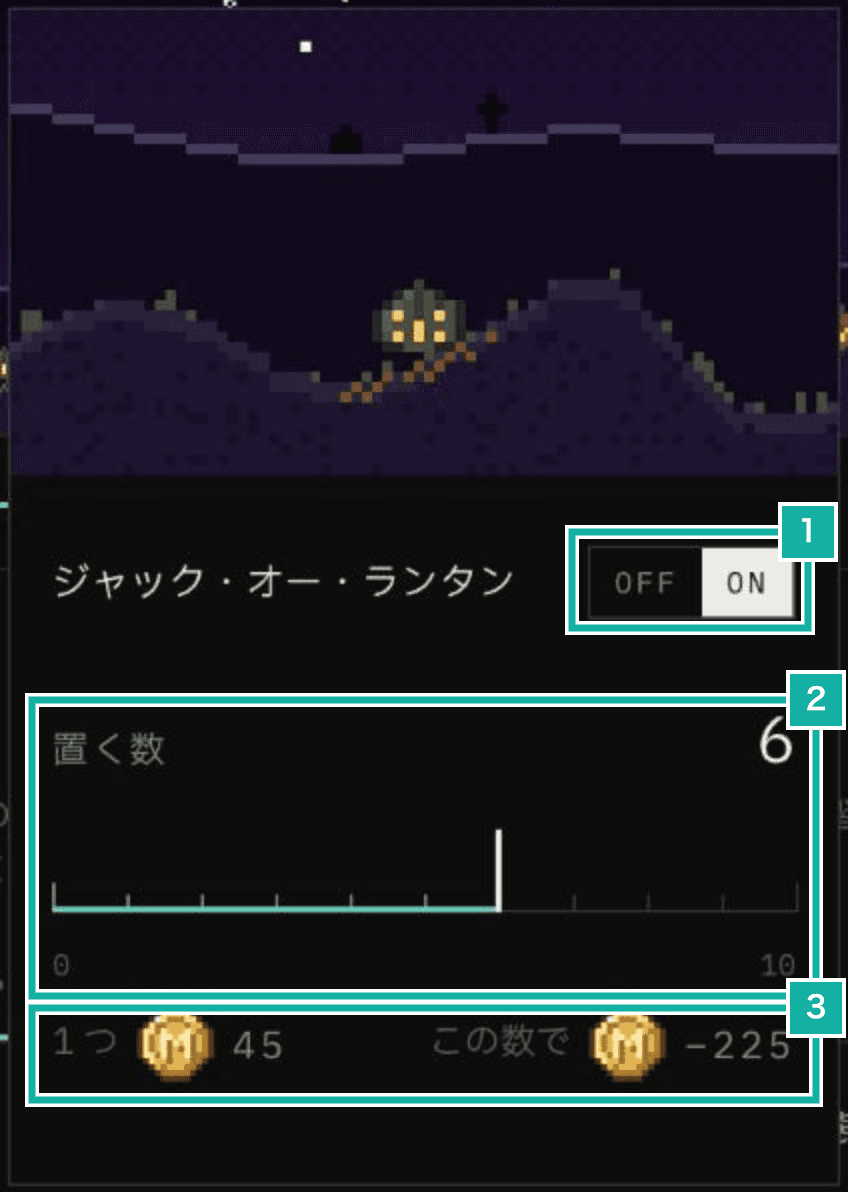
- Show or hide in the tank
- How many to place
- The price of one more, and the M coins the current number costs
When you buy a decoration, the first one is included. Each extra costs M coins, which you get back when you remove it. The starter flowers, bubble vents, jellyfish, and crabs are free up to the number already in your tank at the start.
Because the M coins spent on extras come back, you can shift them to other decorations whenever you like.
Changing position, size, and color
You can change the decorations you've placed directly in the tank:
- Drag one sideways to move it
- Drag up or down to change how tall flowers and crystals grow, or the size of jellyfish, koi, and others
- Tap or click to change things like a flower's color or a koi's pattern
What you can change depends on the decoration.
Choosing a theme
In the Theme section of the Tank tab, you choose the tank's scenery. Changing the theme changes the ground, along with the sky colors, the sun and moon, and the weather.
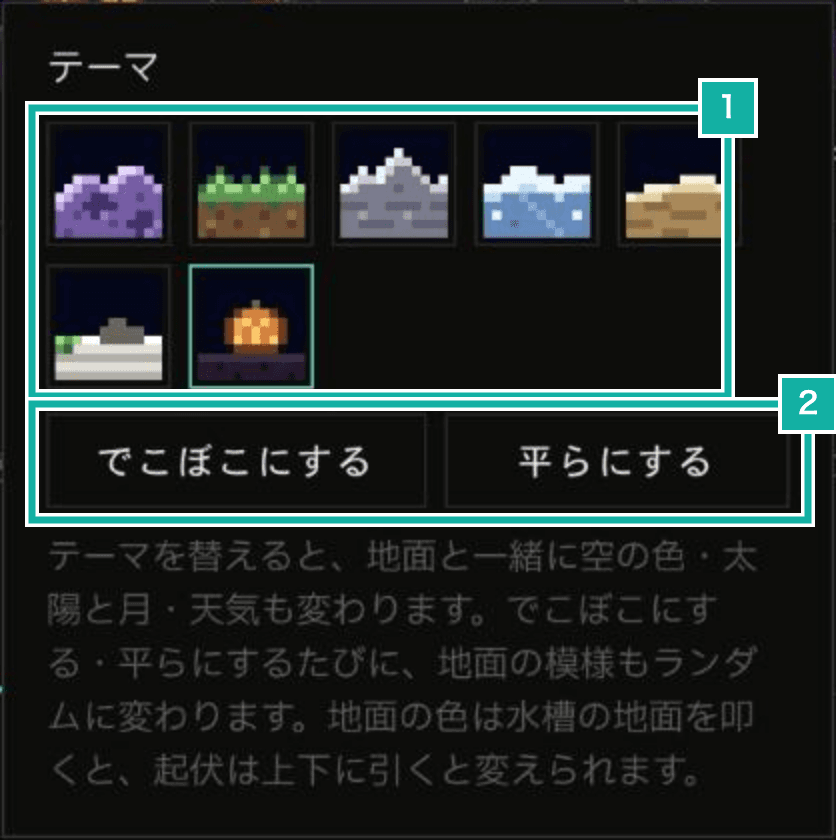
- Themes: Gravel, Grass, Rock, Ice, Desert, Garden, and Halloween
- Randomize reshapes the ground into new bumps; Flatten makes it level
Garden and Halloween are themes you buy with M coins. Garden is a Japanese garden: the snow on Mt. Fuji in the distance changes with the season, and cherry blossom petals drift in spring, fireflies on summer nights, autumn leaves in fall, and snow in winter. In Halloween, a haunted house, dead trees, and gravestones stand on a hill under a purple sky, and at night the windows light up and an orange full moon rises. The six Halloween decorations (jack-o'-lanterns, ghosts, bats, witches, black cats, and a spider) work with any theme.
Choosing Friko
Click Friko, first in the Tank tab's list, to choose how Friko looks in the tank from any look it has had at the levels you've reached. You can also pick its color from the app's six accent colors. While editing, tapping Friko in the tank also cycles through the colors. You can also leave Friko out and keep the tank to just decorations.
Using the tank as a background
Once you've decorated the tank, go to Menu > Display settings > Background > Tank to show it behind the metronome screen too.