While you're signed in to Metronome.fm, settings such as your sound and display now stay the same on every device you sign in to with the same account. A sound you pick on your phone is already there when you open the app on your computer.
Until now, only your keyboard shortcut assignments were saved to your account. Everything else lived only in the browser (localStorage). Each time you switched devices, you had to pick your sound, per-sound volumes, beat display, and so on all over again.
That doesn't mean every setting belongs in your account, though. Some settings, like master volume and recording latency correction, are naturally different on each device. This post covers how we split the settings we sync from the ones we keep on each device, and how syncing works.
Settings we sync and settings we keep on each device
We listed every setting the app kept in the browser and sorted each one into "a preference that follows the person" or "something that depends on the device."
Synced (follows you) | Kept on each device (depends on the device) |
|---|---|
Sound | Master volume and mute |
Per-sound volumes (accent, guide, bass, voice) | Left/right panning |
Voice count and count-in | Vibration |
Timer and gap click | Starting voice commands with the wake word |
Beat display, beat flash, and the order of the buttons in the bar at the bottom of the screen (footer) | Recording latency correction and the camera used for video |
Tuner and drone | Drawer width and panel open/closed state |
Theme, accent color, and language | Per-room sound timing offset in sync rooms |
The rule we used was: "Would the same person want a different value on their phone and their computer?" Sound and beat display are preferences, so they should be the same on every device.
Volume was the one we went back and forth on. Per-sound volumes (such as the balance between accented and normal beats) sync as preferences, and only the master volume stays on each device. Master volume is set to match each device's speakers. A volume you raised on your phone could be far too loud if your computer used it too.
Other settings that naturally differ by device also stay on the device. Recording latency correction is a measured delay from the speaker to the microphone, so it differs per device. Left/right panning depends on what you have connected (such as earphones), and vibration only means something on devices that can vibrate. Starting voice commands with the wake word keeps the microphone in use, and microphone permission is granted per device too. We don't sync any of these, even while syncing.
How the metronome plays right now, such as the tempo and time signature, isn't synced. It would mean writing to your account every time you move the BPM, and using the same setup on another device is already covered by saving a setting with a name (saved settings are stored in your account).
Asking only when settings differ
One option we considered was asking "Sync your settings?" every time you sign in on another device. But right after signing in, you usually want to start playing. We figured a question at that moment would be hard to answer without knowing what happens next, so we cut down the cases where we ask.
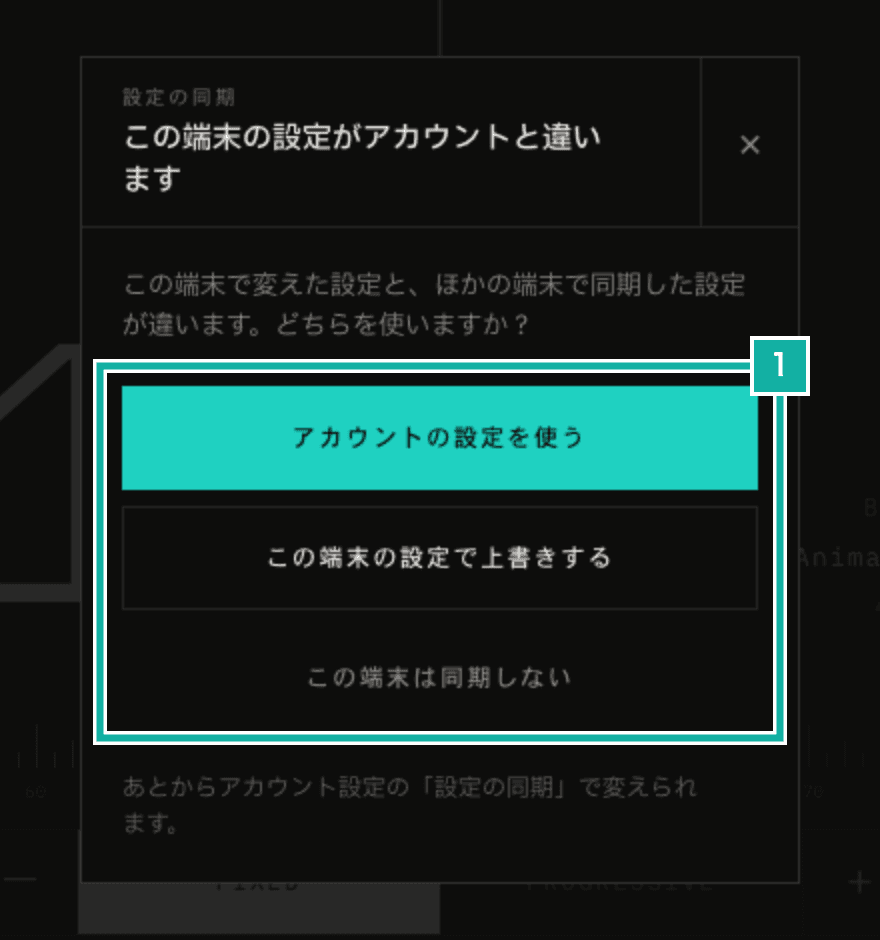
- From the top: use account settings, overwrite with this device's settings, don't sync this device
When you sign in, or come back to the tab or window, the app compares this device's settings (the local settings) with your account's. It checks the rows of this table from the top and uses the first one that applies.
Situation | What happens |
|---|---|
The account has no settings yet | Write the local settings to the account |
The local and account settings match | Nothing |
This device has synced before, and the local settings haven't changed since | Replace the local settings with the account's |
This device has synced before, and the local settings have changed since | Write the local settings to the account |
First sync on this device, and the local settings were never changed | Replace the local settings with the account's |
First sync on this device, and the local settings were changed and differ from the account | Ask which one to use |
Only the last row asks you to choose. It mostly appears when an existing user syncs a second device for the first time, or when someone uses the app for a while without signing in and then signs in.
The table tells "were the local settings changed?" in two ways. If this device has synced before, it compares against the settings from the last sync. For that, each device keeps the settings from its last sync as JSON. If the local settings differ from that JSON, they were changed on this device. Settings changed while offline are detected the same way and can be written to your account once you're back online.
On a device's first sync there is nothing to compare against, so it compares with the app's defaults instead. Language is the one exception and isn't compared. Its default comes from the browser's language setting, so it can differ between devices even if you never changed anything.
Choosing per device whether to sync
You can choose for each device whether it syncs. For that, account settings has a Settings sync section. It starts on.
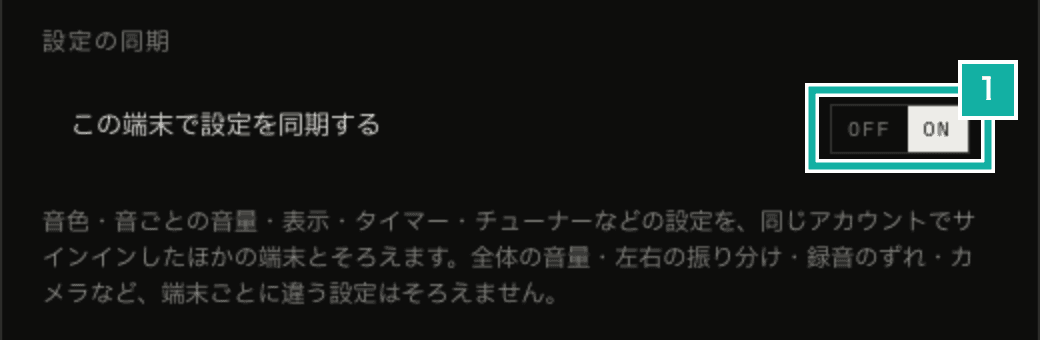
- Turns syncing on or off for this device. The choice stays on each device
This on/off choice is kept in the browser, not in your account. When you turn syncing back on, the device is treated as if it were syncing for the first time, because both this device and your account may have changed while it was off.
Storing settings in a JSON column and checking each field
Account settings are stored in a single JSON column on the users table in the database. That way we don't need a migration to change the table every time a setting is added.
In exchange, the code has to check that the JSON has the right shape. The same zod schema checks it before writing on the server and after reading in the browser.
// Drop only the fields that don't fit, so one broken field doesn't take the others with it
const item = <T extends z.ZodType>(schema: T) =>
  schema.optional().catch(undefined);

const userSchema = z.object({
  accentVolume: item(z.number().min(0).max(100)),
  beatDisplay: item(z.enum(["meter", "pendulum", "ring"])),
  // …
});Each field gets .catch(undefined), so only the fields that don't fit are dropped. Say a new version of the app adds another kind of beat display, and an older version of the app, still open on another device, reads that value. If we threw out the whole object, every other setting would fall back to its default. Checking field by field leaves that device's current beat display as it is and still syncs everything else.
Some values change between app versions, such as the order of the buttons in the bar at the bottom of the screen. When a version adds a new button, people who were already using the app start with that button hidden. So the JSON also stores a version number for how the settings were saved, and when it's read, older values go through a step that converts them to the current shape. It's the same step used for the values kept in the browser.
The lists of which settings sync and which stay on the device are written in one place in the code. It's easy to start keeping a new setting in the browser and forget to add it to either list. To catch that, a unit test checks that every field kept in the browser is in one of the two lists.
Waiting 2 seconds and writing once
After you change a setting, the app waits 2 seconds and then writes to your account in one go, because values keep changing while you drag a volume slider. Writes to your account are also capped at 60 per minute per user.
Settings changed on other devices are read again when you come back to the tab or window and when you reconnect after being offline. To avoid reading every time you switch tabs or windows, coming back reads again at most once every 30 seconds.